Payslip Input
Payslip Input shows all the transactions processed for an employee, no matter which input method is used. The final result produced appears in a similar form to the payslip that will be presented to the employee.
Process transactions using Paylip Input
Use Payslip Input to:
- Process data manually against each individual employee.
- View amounts processed against an employee from other automated processing methods.
- Change or delete earnings and deductions that have already been processed.
Managing Transactions
To access this screen, go to the 'Process' menu, select 'Payslip Input', and choose the specific employee you want to view or edit.
- Insert a transaction: Press the 'Insert' button to add a new Transaction Code to the employee's payslip.
- Change a transaction: Press 'Change' to amend the details or amounts previously entered on a transaction code.
- Delete a transaction: Press 'Delete' to completely remove a transaction code from the employee's payslip for that period.
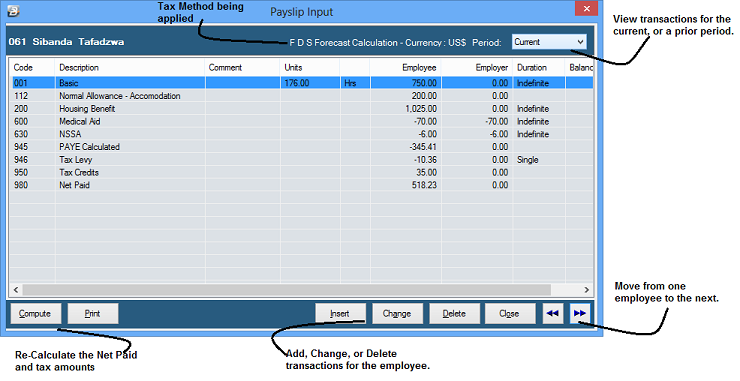
The Compute Button
Once all transactions have been correctly entered, you can press the 'Compute' button to instantly see the final financial picture for that employee, including their PAYE, Aids Levy, and Net Paid.
Note: Pressing the 'Compute' button on this screen is optional and used primarily for quick previewing. However, running the full Calculation Routine from the main menu is a strict requirement once all transactions are processed for the period. The full calculation routine goes through every employee to recalculate tax, accrue leave, and update system parameters.
Setting Transactions to Multiple Durations
Standard recurring transactions (like Basic Pay, Pension, Trade Union, and NEC) come through automatically every period from the date they are first entered. Other specific transactions can be set up to run automatically for a limited number of periods.
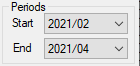
- Multiple Durations: To set a transaction to process for a specified timeframe, enter the Start Period and End Period when adding the Transaction Code. The transaction will automatically apply to the payslip for each period within that range and then stop.
View Prior Periods
You can use the drop-down menu next to the 'Period' field at the top of the screen to view the historical transactions that occurred for the selected employee in any prior period.
Was this page helpful?