Hourly Input
Hourly Input is a batch capture processing method designed specifically for processing large volumes of timesheets and clock cards. Timesheets can be entered in summary or in detail, allowing you to allocate hours worked to different cost centres. The posted entries are then automatically consolidated on the employee's payslip to give a single total per Transaction Code.
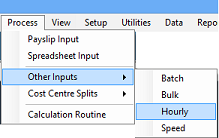
- Go to the 'Process', 'Other Inputs', then 'Hourly' menu options.
- Before commencement, the system requires the entry of a Batch Number and Date.
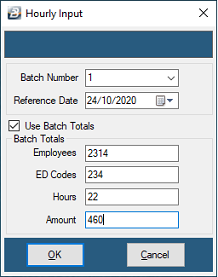
- Hourly Input supports batch controls (hash totals) to verify your data entry accuracy.
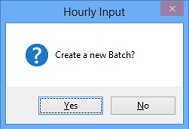
- A confirmation screen will appear asking if the Hourly Input batch is to be opened. Press 'Yes'.
Capturing Transactions
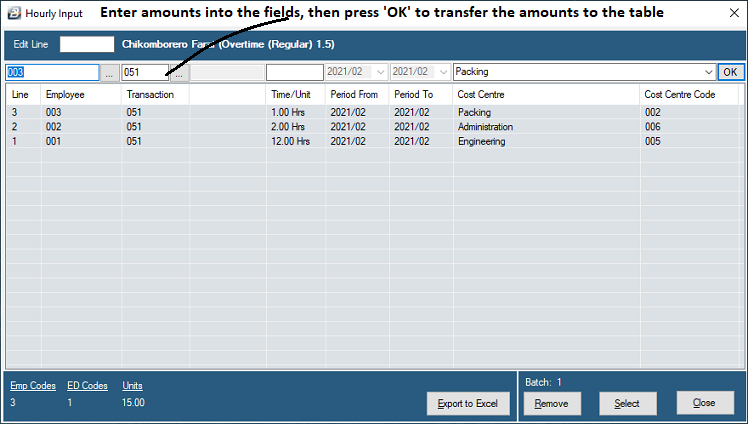
- Process your transactions on the 'Transaction Entry Line'.
- When the transaction details have been entered, press 'OK'.
- The details of the transaction are immediately transferred to the processing table below, with the latest entry automatically positioned at the top of the table.
- (Note: While this feature is designed for hours, non-time units may also be processed using this method if the Transaction Code was set up using the 'Mileage' category).
Managing Hourly Batch Data
While working within the batch table, you can manage your entered data using the following actions:
| Action | Description |
|---|---|
| Edit Line / Select | To amend data in the table, either type the line number to be edited or highlight the specific line and press 'Select'. |
| Remove | Highlight any line in the table and press 'Remove' to completely delete that transaction from the batch. |
| Export to Excel | Information in the batch may be exported directly to Microsoft Excel. This specific exported file format can then be used as a template to import data back into the system if needed. |
Closing and Verification
- When you are finished capturing data, you can exit the batch.
- If the calculated totals of your batch details do not perfectly agree with the batch control figures (hash totals) entered at the start, a warning message will display showing the exact numerical differences.
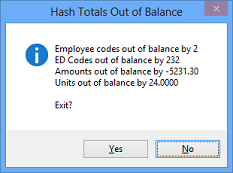
- Although you are warned about the discrepancy, the system will still allow you to proceed and post the amounts to the employees' payslips if you choose to do so.
Was this page helpful?