User Groups
A security Group describes a group of people involved in payroll processing with a particular function and access to the payroll modules.
Creating a Group
To Create a new Security Group:
| Step 1 | Select the Setup, Security, then Usergroups menu options |
|---|---|
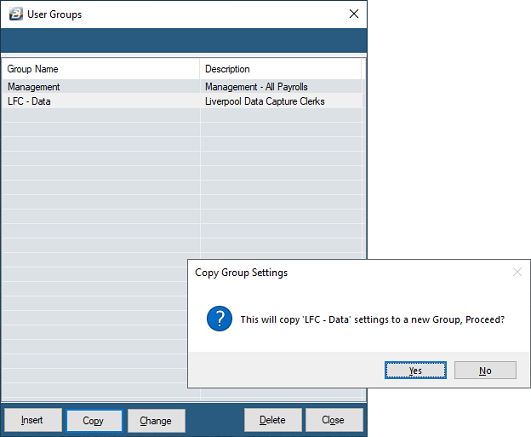
| Step 2 | Select Insert (or Copy - see note below) |
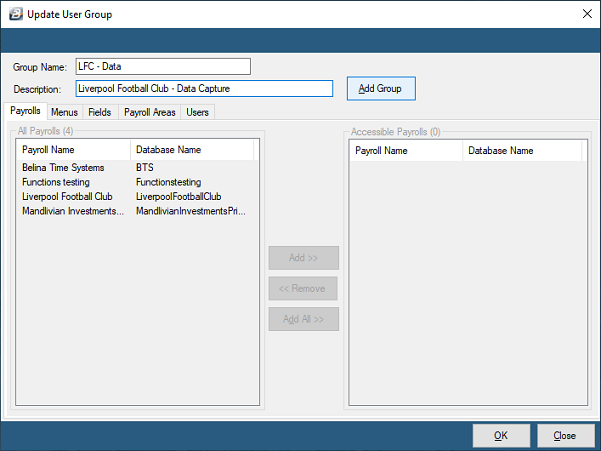
| Step 3 | Group Name - Enter a name for the Group |
| Step 4 | Description - Enter a description for the Group |
| Step 5 | Click the Add Group button |
Note: To create a new group by copying the setup of another group saves time and energy. Highlight the Group that you would like to copy, then press 'Copy', then press 'Yes'. Enter the 'Group Name' and 'Description' and then 'OK'.
Setup Payrolls that the Group can Access
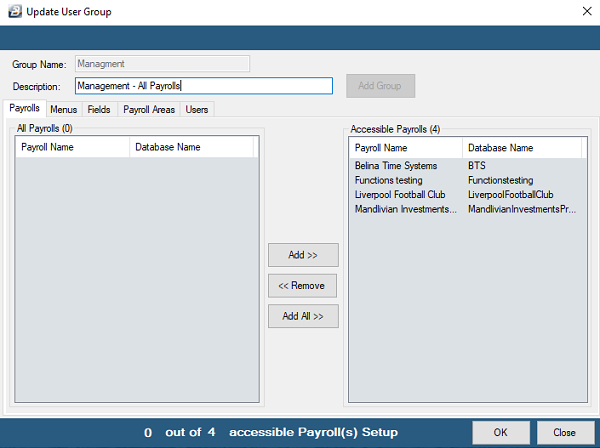
Then setup which Payrolls that Group can access
| Step 7 | Notice that there are 5 tabs under the 'Description' field. The Payrolls tab is currently open. |
|---|---|
| Step 8 | Specify which payrolls that Group can access by using the 'Add >>' button to move the payroll to the list of 'Accessible Payrolls' |
Setup Menus that the Group can Access
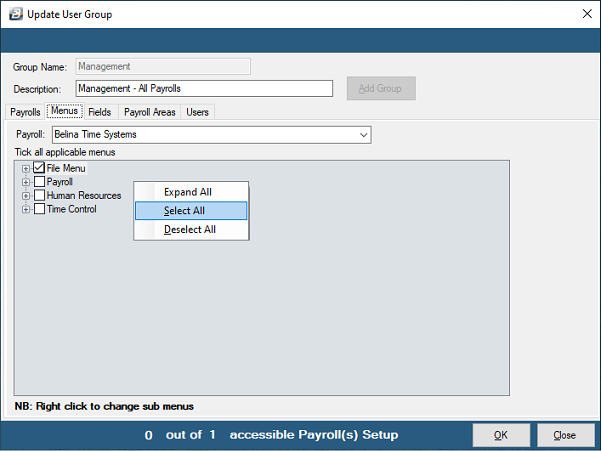
Then setup which Menus that Group can access:
| Step 9 | Select which menus the group can access in each of the modules. To select all sub-options below a level right click on the menu option and 'Select All' |
|---|---|
| Step 10 | It is possible to select individual menu options from the list available |
Setup Fields that the Group can Access
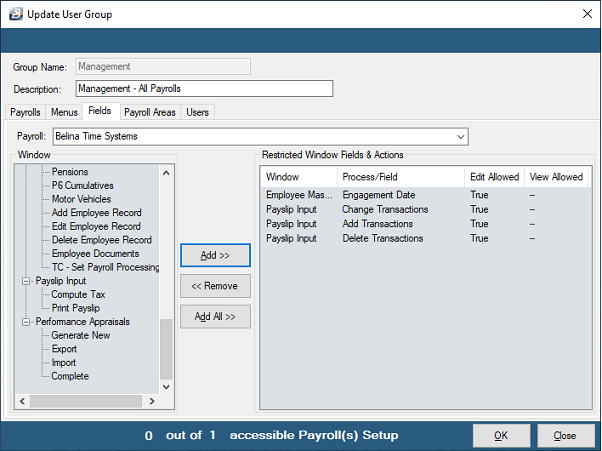
Then setup which Fields that Group cannot access
| Step 11 | Use the 'Add >>' button to add to the list of restrictions imposed on the group. In this example the Management group cannot edit Employee Master engagement dates as well as add, delete or change payslip transactions. |
|---|
Setup Payroll Areas that the Group cannot Access
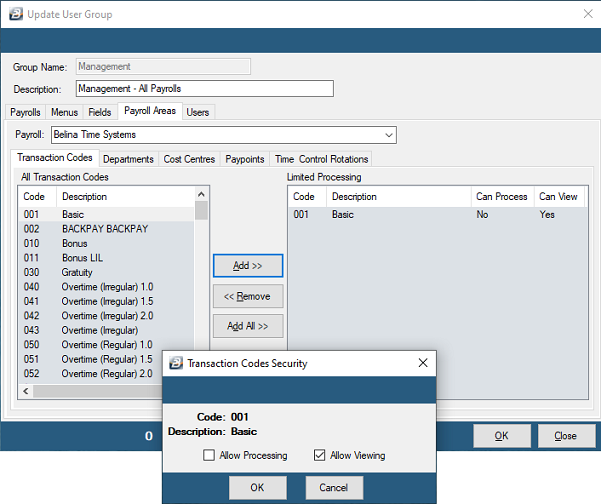
Then setup which Payroll Areas that Group cannot access
Was this page helpful?