Other
Other - Employer Contributions (Zimdef, WCIF, Standards Development Levy)
Use this transaction type to process amounts paid by the employer on behalf of an employee (e.g., WCIF contributions). The amounts processed are reflected on the payslip but do not affect the net pay.
Create a Zimdef Transaction Code
Create a Standards Development Levy Transaction Code
Create a APWCS Transaction Code
View written instructions
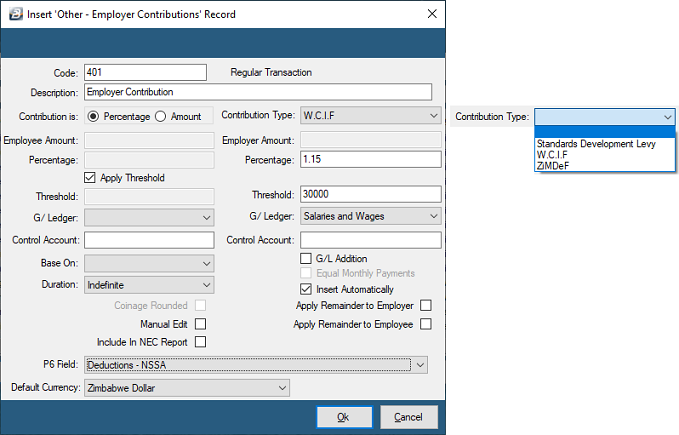
- Go to the 'Edit', 'Transaction Codes' menu options.
- Click 'Insert' and select the Transaction Category 'Other - Employer Contributions'.
- Accept/Change the default 'Code'.
- Enter an appropriate 'Description'.
- Use the radio button to select whether the amount will be calculated as a percentage of Basic Pay, or as a fixed Amount.
- Select 'Contribution Type' from the drop-down menu (leave blank if it is not one of the specific listed types).
- If the calculation is based on a percentage, select whether a threshold applies. Ticking the 'Apply Threshold' check-box activates the Employer 'Threshold' field to enter a maximum cap.
- Enter the 'Employer Amount' if the payment is a standard amount. If varying, leave blank and tick 'Manual Edit'.
- Select the 'General Ledger' Code.
- If based on Basic pay, select whether that base is the Employer Master, NEC, or Internal Grade amount.
- Select whether the code should be inserted automatically onto every payslip.
- Set the 'Duration'.
- Set the 'P6 Field' for year-end ITF16 export.
- Click 'Ok' to save the new Transaction Code.
Other - Medical Expenses
Use the 'Other - Medical Expenses' Transaction Category to process medical expenses incurred by the employee outside the payroll. These amounts will be used in the calculation of tax credits, thereby reducing the PAYE amount calculated.
To create an 'Other - Medical Expenses' Transaction Code
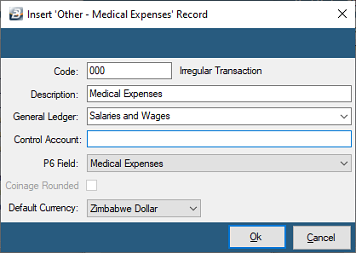
- Go to the 'Edit', 'Transaction Codes' menu options.
- Click 'Insert' and select the Transaction Category 'Other - Medical Expenses'.
- Accept/Change the default 'Code'.
- Enter an appropriate 'Description'.
- Set the 'P6 Field' for year-end ITF16 export.
- Click 'Ok' to save the new Transaction Code.
Other - Mileage & Mileage (Non Taxable)
Use this Transaction Type to process mileage and other taxable payments to employees, using a rate per unit. Typically mileage allowances are non-taxable. This transaction type can also be used to process taxable amounts where there is a value per unit.
To create an 'Other - Mileage' Transaction Code
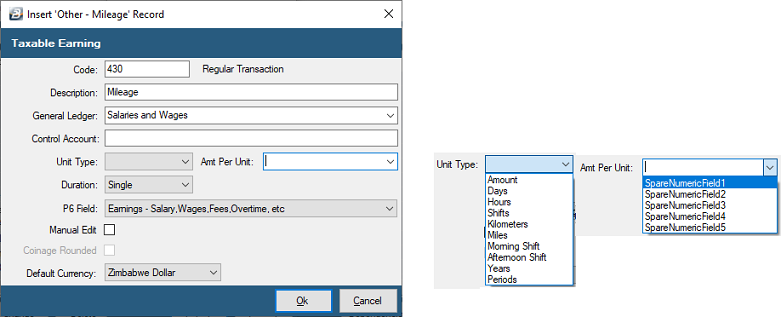
- Go to the 'Edit', 'Transaction Codes' menu options.
- Click 'Insert' and select the Transaction Category 'Other - Mileage' or 'Other - Mileage (Non Taxable)'.
- Accept/Change the default 'Code'.
- Enter an appropriate 'Description'.
- Select the 'General Ledger' Code.
- Select the 'Unit Type' to describe the transaction (e.g., Kilometers, Shifts, Hours, Days, Years). These descriptions are customizable under the 'Setup' > 'Units' menu.
- Enter the 'Amount Per Unit' to be applied in the calculation.
- Set the 'Duration'.
- Set the 'P6 Field'.
- Click 'Ok' to save the new Transaction Code.
Other - Transaction Reference
Use 'Transaction Reference' to record a background value that is used in a calculation elsewhere. It is not directly included in earnings/deductions or in the calculation of Net Paid or PAYE. Other Transaction Codes refer to this reference value to calculate amounts that do appear on the payslip. (Note: If you prefer this reference not to be reported on payslips, Belina Support staff can configure this).
To create an 'Other - Transaction Reference' Transaction Code
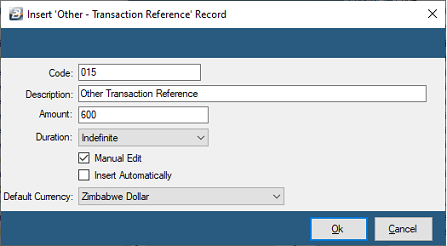
- Go to the 'Edit', 'Transaction Codes' menu options.
- Click 'Insert' and select the Transaction Category 'Other - Transaction Reference'.
- Accept/Change the default 'Code'.
- Enter an appropriate 'Description'.
- Enter a default 'Amount', if appropriate. If varying, tick 'Manual Edit'.
- Set the 'Duration'.
- Tick 'Insert Automatically' to have the code included automatically on new employees' payslips.
- Set the 'Default Currency'.
- Click 'Ok' to save the new Transaction Code.
System Generated Codes (Negative Pay, Net Paid, Rounding)
The following transaction codes are automatically generated by the Belina system when the Calculation Routine is run. No user setup is required.
- Other - Negative Pay: Automatically entered if deductions exceed income in a period. Belina advances sufficient funds to cover the deficit, leaving a NIL Net Pay amount.
- Other - Negative Pay Recovery: Automatically entered in a subsequent period to recover the amount advanced from a prior Negative Pay deficit.
- Other - Net Paid: Represents the final excess of income over deductions (the balance due to the employee).
- Other - Rounded Pay: Automatically rounds the Net Paid amount up to the nearest denomination set in the Coinage Table. The rounded difference is added to the Calculated Net Pay.
- Other - Rounded Pay Recovery: Automatically recovers the rounded amount advanced in the prior period (if the system has been set to recover it).
Was this page helpful?