Earnings Transaction Codes
To Create an Earnings Transaction Code
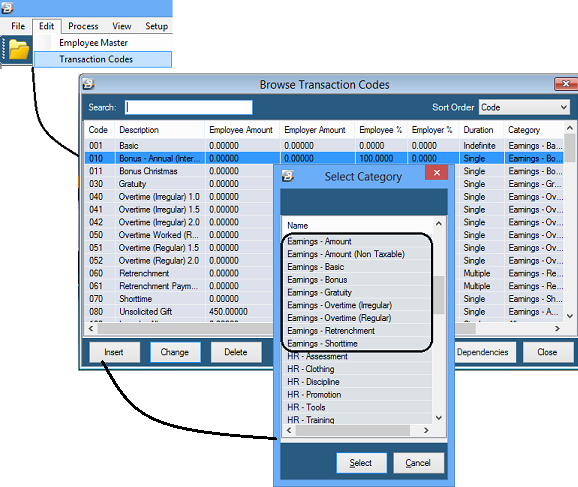
- Go to the 'Edit', then 'Transaction Codes' menu options
- From the table of existing Transaction Codes, press Insert
- A list of Transaction Category are listed
- Notice that there are 8 different types of 'Earnings' Transaction Categories:
Earnings - Amount
Use 'Earnings - Amount' to setup a Transaction Code to process irregular taxable amounts to employees.
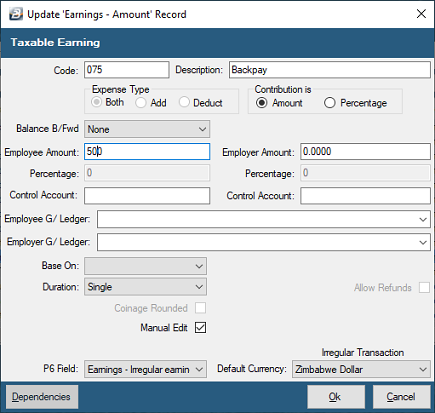
Set the 'Amount' to be paid or enter the amount whilst processing if 'Allow Manual Editing' has been ticked.
To create an 'Earnings - Amount' Transaction Code
- Go to the 'Edit' , 'Transaction Codes' menu options.
- Click 'Insert' and select the Transaction Category 'Earnings - Amount'.
- Accept/ Change the default 'Code'. This is a unique identifier for the Transaction Code and the numbers are designed to group similar types of transaction together.
- Enter an appropriate 'Description'.
- 'Contribution is' : select whether the Amount being process is a Percentage or an amount.
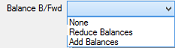
- If amount processed are to accumulate a balance or reduce from a set opening balance select either 'Reduce Balances', or 'Add Balances'
-
Enter the 'Employee Amount' and 'Employer Amount' if the Contribution has been set to 'Amount'. If the amount varies, leave blank and place a tick against 'Manual Edit' which allows the entry of an amount when processing.
-
Enter the 'Percentage' for the Employee and the Employer if the Contribution has been set to 'Percentage'. If the amount varies, leave blank and place a tick against 'Manual Edit' which allows the entry of an amount when processing.
-
Select the 'General Ledger' Codes to be entered onto journal reports and exports for the Employee and Employer.
-
Select 'Base On' if the amount is a percentage of the rate of pay for the Grade, Internal Grade or Employee Master Rate of Pay.
-
Set the 'Duration' - whether the transaction is to come through for a 'Single', 'Multiple' or 'Indefinite' number of periods.
-
Set 'Manual Edit' if you would like to be able to enter, or change, the amount of the Allowance when processing.
-
Set the 'P6 Field' for year end ITF16 export.
-
Set the 'Default Currency' that this transaction code will be paid in, the currency that the Earning will paid in on the payslip and used in the calculation of PAYE.
-
Click 'Ok' to save the new Transaction Code.
Dependencies
After pressing the 'OK' button and saving the Transaction Code, if you re-open the Transaction Code you will notice that a 'Dependencies' button is now displayed at the bottom of the screen. It is now possible to link this Transaction Code to other Transaction Codes and have computations done to produce a result to be used.
Earnings - Amount (Non Taxable)
Use 'Earnings - Amount (Non Taxable)' to setup a Transaction Code to process irregular, non taxable, amounts to employees. There are very few instances where an employer would be able to give an employee a non-taxable amount. In the most part all amounts paid by an employer to an employee are taxable.
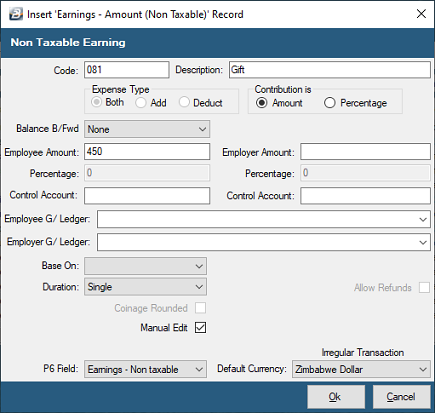
To create an 'Earnings - Amount (Non Taxable)' Transaction Code
- Go to the 'Edit', 'Transaction Codes' menu options.
- Click 'Insert' and select the Transaction Category 'Earnings - Amount'.
- Accept/ Change the default 'Code'. This is a unique identifier for the Transaction Code and the numbers are designed to group similar types of transaction together.
- Enter an appropriate 'Description'.
- 'Contribution is': select whether the Amount being processed is a Percentage or an Amount.
- If the amount processed is to accumulate a balance or reduce it from a set opening balance, select either 'Reduce Balances', or 'Add Balances'.
-
Enter the 'Employee Amount' and 'Employer Amount' if the Contribution has been set to 'Amount'. If the amount varies, leave blank and place a tick against 'Manual Edit' which allows the entry of an amount when processing.
-
Enter the 'Percentage' for the Employee and the Employer if the Contribution has been set to 'Percentage'. If the amount varies, leave blank and place a tick against 'Manual Edit' which allows the entry of an amount when processing.
-
Select the 'General Ledger' Codes to be entered onto journal reports and exports for the Employee and Employer.
-
Select 'Base On' if the amount is a percentage of the rate of pay for the Grade, Internal Grade or Employee Master Rate of Pay.
-
Set the 'Duration' - whether the transaction is to come through for a 'Single', 'Multiple' or 'Indefinite' number of periods.
-
Set 'Manual Edit' if you would like to be able to enter, or change, the amount of the Allowance when processing.
-
Set the 'P6 Field' for year-end ITF16 export.
-
Set the 'Default Currency'. The currency that the Earning will be paid in on the payslip and used in the calculation of PAYE.
-
Click 'Ok' to save the new Transaction Code.
-
Dependencies: This Transaction Code can be based on a percentage, amount, or the number of units stated in one or more dependent Transaction Codes.
Earnings - Basic
Use 'Earnings - Basic' to setup a Transaction Code to process Basic Pay for an employee. The basic Rate of Pay for each employee is set up in the employee Masterfile. It is possible to Base the Rate of Pay on the Rate entered into the Employee Master, the employee Internal Grade Rate, or the employee NEC Grade Rate. This Transaction Code is often setup to 'Insert Automatically' (i.e., to come through as a standard Transaction Code when a new employee is engaged and then to come through 'Indefinitely' each period thereafter).
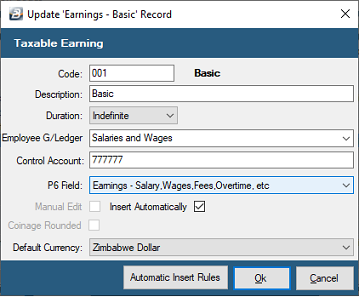
Use the 'Automatic Insert Rules' to specify that the 'Insert Automatically' only applies to Permanent employees.
To create an 'Earnings - Basic' Transaction Code
View written instructions
- Go to the 'Edit', 'Transaction Codes' menu options.
- Click 'Insert' and select the Transaction Category 'Earnings - Basic'.
- Accept/ Change the default 'Code'. This is a unique identifier for the Transaction Code and the numbers are designed to group similar types of transaction together.
- Enter an appropriate 'Description'.
- Select the 'General Ledger' Code to be entered onto journal reports and exports.
- Set the 'P6 Field' for year-end ITF16 export.
- Tick 'Insert Automatically' to have the Transaction Code included automatically on new employee's payslips.
- Set the 'Default Currency'. The currency that the Earning will be paid in on the payslip and used in the calculation of PAYE.
- Click 'Ok' to save the new Transaction Code.
Earnings - Bonus
Use 'Earnings - Bonus' to setup a Transaction Code to process annual bonuses that are eligible for the annual bonus tax-free amount allowed. Bonuses received regularly, such as production bonuses, should not be processed using this Transaction Type because they should not enjoy the tax-free element, and these amounts should be handled differently in the FDS calculation where income is projected.
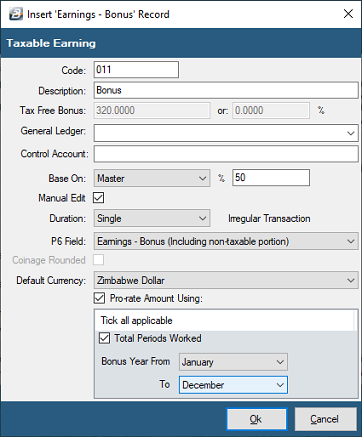
To create an 'Earnings - Bonus' Transaction Code
- Go to the 'Edit', 'Transaction Codes' menu options.
- Click 'Insert' and select the Transaction Category 'Earnings - Bonus'.
- Accept/ Change the default 'Code'. This is a unique identifier for the Transaction Code and the numbers are designed to group similar types of transaction together.
- Enter an appropriate 'Description'.
- Check that the 'Tax Free Bonus' parameters that have come through from the Tax setup parameters are current.
- Select the 'General Ledger' Code to be entered onto journal reports and exports.
- Select 'Base On' if the amount is a percentage of the rate of pay for the Grade, Internal Grade or Employee Master Rate of Pay.
- If the bonus amount varies, leave the percentage blank and place a tick against 'Manual Edit' which allows the entry of an amount when processing.
- Set the 'Duration' - whether the transaction is to come through for a 'Single', 'Multiple' or 'Indefinite' number of periods.
- Set the 'P6 Field' for year-end ITF16 export.
- Set the 'Default Currency'. The currency that the Earning will be paid in on the payslip and used in the calculation of PAYE.
- Click 'Ok' to save the new Transaction Code.
- The amount of the bonus is normally entered whilst processing, but where the bonus is based as a percentage of basic, the amount comes through automatically.
- Dependencies: This Transaction Code can be based on a percentage, amount, or the number of units stated in one or more dependent Transaction Codes.
Earnings - Deferred
Use 'Earnings - Deferred' to setup a Transaction Code for the payment of a lump sum spread over a specified number of periods at a user-defined amount per period.
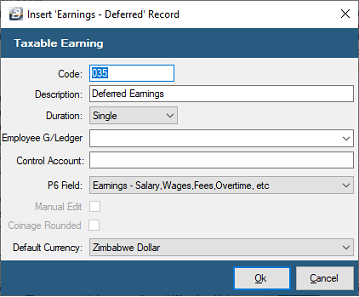
To create an 'Earnings - Deferred' Transaction Code
- Go to the 'Edit', 'Transaction Codes' menu options.
- Click 'Insert' and select the Transaction Category 'Earnings - Deferred'.
- Accept or change the default 'Code'. This is a unique identifier for the Transaction Code, grouping similar types of transactions together.
- Enter an appropriate 'Description'.
- Select the 'General Ledger' Code to be entered onto journal reports and exports.
- Set the 'Duration' — whether the transaction is to come through for a 'Single', 'Multiple', or 'Indefinite' number of periods.
- Set the 'P6 Field' for the year-end ITF16 export.
- Set the 'Default Currency'. This is the currency the Earning will be paid in on the payslip and used in the calculation of PAYE.
- Click 'Ok' to save the new Transaction Code.
Earnings - Gratuity
Use 'Earnings - Gratuity' to setup a Transaction Code to process the payment of an irregular gratuity amount.
To create an 'Earnings - Gratuity' Transaction Code
View written instructions
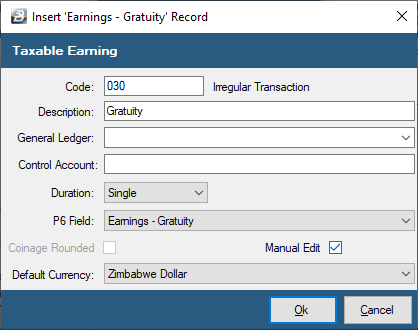
- Go to the 'Edit', 'Transaction Codes' menu options.
- Click 'Insert' and select the Transaction Category 'Earnings - Gratuity'.
- Accept or change the default 'Code'. This is a unique identifier for the Transaction Code, grouping similar types of transactions together.
- Enter an appropriate 'Description'.
- Select the 'General Ledger' Code to be entered onto journal reports and exports.
- Tick 'Manual Edit' to allow the entry of the gratuity amount when processing.
- Set the 'Duration' — usually set to 'Single' for irregular gratuity payouts.
- Set the 'P6 Field' for the year-end ITF16 export.
- Set the 'Default Currency'. This is the currency the Earning will be paid in on the payslip and used in the calculation of PAYE.
- Click 'Ok' to save the new Transaction Code.
Earnings - Overtime (Irregular & Regular)
Use 'Earnings - Overtime' to setup a Transaction Code for overtime processing. This includes the entry of hours worked and the factor/rate to be applied.
- Irregular: Since the overtime is worked irregularly, the amount is added to year-to-date income but not projected in the FDS tax calculation.
- Regular: Since the overtime is worked regularly, the amount is projected in the FDS tax calculation.
To create an 'Earnings - Overtime' Transaction Code
View written instructions
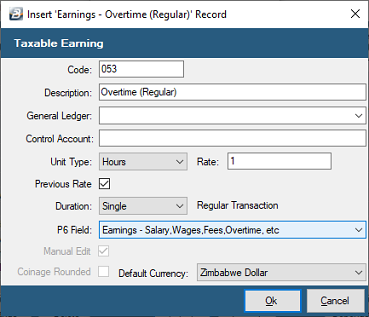
- Go to the 'Edit', 'Transaction Codes' menu options.
- Click 'Insert' and select the Transaction Category 'Earnings - Overtime (Irregular)' or 'Earnings - Overtime (Regular)'.
- Accept or change the default 'Code'. This is a unique identifier for the Transaction Code.
- Enter an appropriate 'Description' (e.g., "Overtime 1.5x").
- Enter the 'Rate' (the multiplier applied to the base rate of pay, e.g., 1.5 or 2.0).
- Select the 'Unit Type' (Days, Hours, or Amount).
- Select the 'General Ledger' Code to be entered onto journal reports and exports.
- Set the 'P6 Field' for the year-end ITF16 export.
- Set the 'Default Currency'. This is the currency the Earning will be paid in on the payslip.
- Click 'Ok' to save the new Transaction Code.
Earnings - Retrenchment
Use 'Earnings - Retrenchment' to setup a Transaction Code to process the payment of an irregular amount subject to retrenchment tax concessions. This applies to retrenchment payments made from a registered scheme of retrenchment.
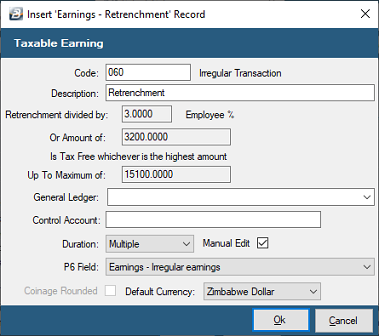
To create an 'Earnings - Retrenchment' Transaction Code
- Go to the 'Edit', 'Transaction Codes' menu options.
- Click 'Insert' and select the Transaction Category 'Earnings - Retrenchment'.
- Accept or change the default 'Code'. This is a unique identifier for the Transaction Code.
- Enter an appropriate 'Description'.
- Select the 'General Ledger' Code to be entered onto journal reports and exports.
- Tick 'Manual Edit' to allow the entry of the retrenchment package amount when processing.
- Set the 'Duration' — typically set to 'Single' for a once-off retrenchment payout.
- Set the 'P6 Field' for the year-end ITF16 export.
- Set the 'Default Currency'. This is the currency the Earning will be paid in on the payslip.
- Click 'Ok' to save the new Transaction Code.
Earnings - Shorttime
Use 'Earnings - Shorttime' to setup a Transaction Code for shorttime processing. This involves the entry of hours not worked and the factor to be applied. Shorttime reduces overtime hours worked first before being applied to normal hours, and the amount is processed as a deduction from Basic Pay.
To create an 'Earnings - Shorttime' Transaction Code:
View written instructions
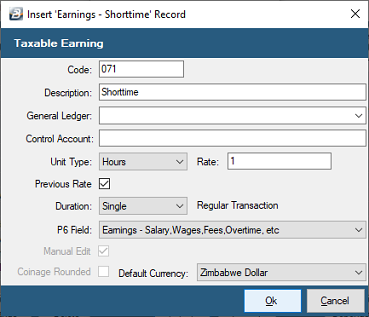
- Go to the 'Edit', 'Transaction Codes' menu options.
- Click 'Insert' and select the Transaction Category 'Earnings - Shorttime'.
- Accept or change the default 'Code'. This is a unique identifier for the Transaction Code.
- Enter an appropriate 'Description'.
- Enter the 'Rate' at which the deduction of shorttime is to be effected (e.g., at normal time x1).
- Select the 'Unit Type' (Days, Hours, or Amount).
- Select the 'General Ledger' Code to be entered onto journal reports and exports.
- Set the 'P6 Field' for the year-end ITF16 export.
- Set the 'Default Currency'. This is the currency the transaction will be calculated in.
- Click 'Ok' to save the new Transaction Code.
Was this page helpful?