Leave
Care has been taken to ensure that the different types of leave can be processed and accounted for. Leave processing is based on parameters entered under 'Global Defaults'.
There is usually no need to manually set up Leave Pay Recovery, Leave Adjustment , CILL,
Days Taken and
Paid in Advance Transaction Codes. These are automatically generated by Belina Payroll when required. However, if it is necessary to create one manually:
- Go to the 'Edit', then 'Transaction Codes' menu options
- From the table of existing Transaction Codes, press Insert
- A list of Transaction Categories are listed

Leave - Pay Recovery
When an employee is paid the value of leave days in advance (using the 'Leave Annual - Paid in Advance' code) prior to going on leave, any leave days that extend over the period end will be recovered in subsequent periods. This is particularly useful for weekly-paid employees who may be paid for several weeks of leave before going away. In the weeks that the employee is away, a Leave Recovery will be automatically inserted to recover the amount paid in advance.
To create a 'Leave - Pay Recovery' Transaction Code

- Go to the 'Edit', 'Transaction Codes' menu options.
- Click 'Insert' and select the Transaction Category 'Leave - Pay Recovery'.
- Accept/Change the default 'Code'. This is a unique identifier designed to group similar types of transactions together.
- Enter an appropriate 'Description'.
- Select the 'General Ledger' Code to be entered onto journal reports and exports.
- Set the 'P6 Field' for year-end ITF16 export.
- Set the 'Default Currency' that this transaction code will be paid in.
- Click 'Ok' to save the new Transaction Code.
Leave Annual - Adjustment
Use the 'Leave Annual - Adjustment' Transaction Code to enter opening leave balances and to make leave adjustments. The Annual Leave balance normally increases automatically by the accrual of leave each period. If the balance needs to be adjusted manually, this is done by processing a Leave Adjustment using this code. Adjusted leave balances may be viewed in the employee master or the leave reports.
To create a 'Leave Annual - Adjustment' Transaction Code

- Go to the 'Edit', 'Transaction Codes' menu options.
- Click 'Insert' and select the Transaction Category 'Leave Annual - Adjustment'.
- Accept/Change the default 'Code'.
- Enter an appropriate 'Description'.
- Select the 'General Ledger' Code to be entered onto journal reports and exports.
- Tick 'Previous Rate' if the leave is to be based on the previous rate of pay. Leave unchecked to have the current rate applied.
- Select the 'Leave Source' (whether the leave accumulated from Normal Leave or from leave banks).
- Set the 'Duration' — whether the transaction is to come through for a 'Single', 'Multiple', or 'Indefinite' number of periods.
- Set the 'P6 Field' for year-end ITF16 export.
- Set the 'Default Currency'.
- Click 'Ok' to save the new Transaction Code.
Leave Annual - CILL
Use 'Leave Annual - CILL' (Cash in Lieu of Leave) to process payments to staff for "selling" their leave days. This is the conversion of annual leave days into cash. The annual leave balance is reduced by the number of leave days sold, and the value is added to the employee's payslip.
To create a 'Leave Annual - CILL' Transaction Code

- Go to the 'Edit', 'Transaction Codes' menu options.
- Click 'Insert' and select the Transaction Category 'Leave Annual - CILL'.
- Accept/Change the default 'Code'.
- Enter an appropriate 'Description'.
- Tick 'Previous Rate' if the payout is to be based on the previous rate of pay. Leave unchecked to have the current rate applied.
- Select the 'General Ledger' Code.
- Set the 'Duration' (typically 'Single').
- Set the 'P6 Field'.
- Set the 'Default Currency'.
- Click 'Ok' to save the new Transaction Code.
Leave Annual - Days Taken
Use 'Leave Annual - Days Taken' to process normal leave days taken. The number of days taken is automatically deducted from the leave balance and reflected on the Balances Tab in the Employee Master and on the payslip.
To Create a 'Leave Annual - Days Taken' Transaction Code
- Go to the 'Edit', 'Transaction Codes' menu options.
- Click 'Insert' and select the Transaction Category 'Leave Annual - Days Taken'.
- Accept/Change the default 'Code'.
- Enter an appropriate 'Description'.
- Select the 'General Ledger' Code.
- Set the 'Duration' (Single, Multiple, or Indefinite).
- Set the 'P6 Field'.
- Set the 'Default Currency'.
- Click 'Ok' to save the new Transaction Code.
Leave Annual - Paid in Advance
Use 'Leave Annual - Paid in Advance' to process leave days taken where the leave is valued and paid out in cash upfront. The number of leave days is deducted from the leave entitlement, and the financial value is given to the employee in the current period. It is then recovered using the 'Leave - Pay Recovery' code in the subsequent periods while the person is away so their net pay for those away periods zeroes out correctly.
To create a 'Leave Annual - Paid in Advance' Transaction Code
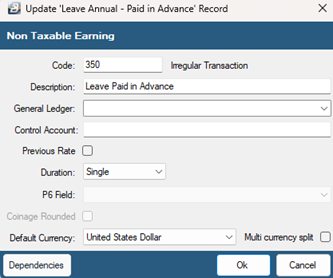
- Go to the 'Edit', 'Transaction Codes' menu options.
- Click 'Insert' and select the Transaction Category 'Leave Annual - Paid in Advance'.
- Accept/Change the default 'Code'.
- Enter an appropriate 'Description'.
- Select the 'General Ledger' Code.
- Tick 'Previous Rate' if it should be based on the previous rate of pay. Leave unchecked to have the current rate applied.
- Set the 'Duration' (typically 'Single').
- Set the 'P6 Field'.
- Set 'Manual Edit' if you need to override the calculated advance amount.
- Set the 'Default Currency'.
- Click 'Ok' to save the new Transaction Code.
Leave Other (Maternity, Sick, Compassionate, Unpaid, etc.)
Use the 'Leave Other' subcategories to process specific types of leave awarded to employees (e.g., Maternity, Sick, Special/Compassionate, Study, Climatic, Mother's Day, Sabbatical, Unpaid).
Note: For specialized leave types such as Compassionate/Special, Belina Payroll keeps an accumulative balance of days taken and pays the value of the leave up to the maximum allowed—thereafter, the value of excess days will be deducted from the individual's pay.
To create a 'Leave Other' Transaction Code (Applicable to all specific 'Other' leave types)
View written instructions

- Go to the 'Edit', 'Transaction Codes' menu options.
- Click 'Insert' and select the appropriate Transaction Category (e.g., 'Leave Other - Maternity', 'Leave Other - Sick', 'Leave Other - Unpaid', etc.).
- Accept/Change the default 'Code'.
- Enter an appropriate 'Description' (e.g., "Sick Leave Taken").
- Select the 'General Ledger' Code to be entered onto journal reports and exports.
- Set the 'Duration' — whether the transaction is to come through for a 'Single', 'Multiple', or 'Indefinite' number of periods.
- Set the 'P6 Field' for year-end ITF16 export.
- Set the 'Default Currency' that this transaction code will be paid (or deducted) in.
- Click 'Ok' to save the new Transaction Code.
Was this page helpful?