Updating Tax Bands
Belina Payroll is supplied with implementation assistance, and current tax parameters are set up during that process.
Manual Update
As revised tax parameters are gazetted, Belina notifies clients by email and via the Belina website Resources page. The steps for updating parameters manually follow the same process used during initial setup under Setup → Tax → New.
Software Update
Alternatively, install the software update released after the new tax period begins — this also brings in any other enhancements released since your last update.
Once the update is installed, activate the new tax parameters:
- Go to Setup → New → Tax
- Enter the Effective Date — the start date of the current tax year
- Click the ellipsis button next to Effective Date
- Select Auto Create Tax Tables
- A warning displays — select Yes to continue
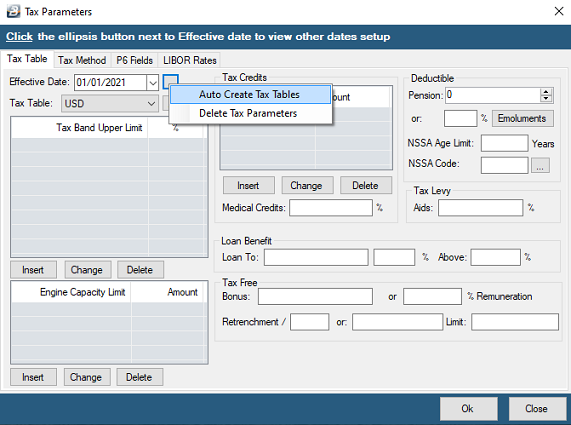
Provided the update was released after the tax year began, the new parameters come through automatically.
Deleting Tax Parameters
There may be situations where tax parameters are incorrect and need to be removed.
To delete parameters currently displayed:
- Go to Setup → Tax → Existing
- Click the ellipsis button next to Effective Date
- Select Delete Tax Parameters
- A warning displays — select Yes to continue
To delete parameters not currently displayed:
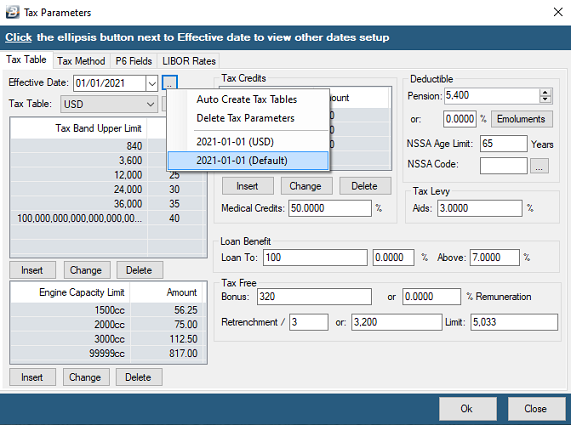
- Click the ellipsis button next to Effective Date
- Select the commencement date of the parameters you want to delete
- A warning displays: "Do you want to load the settings for the selected date? All unsaved data will be lost." — click Yes
- The parameters will now display and are ready to delete
- Click the ellipsis button next to Effective Date again
- Select Delete Tax Parameters
- A warning displays — select Yes to continue
Was this page helpful?