P6 Certificates
History and Current Purpose
Historically, P6 forms were certificates issued to employees, certifying the earnings and deductions made while employed with the organization for the current tax year. Employees submitted the P6 alongside their annual tax return.
With the introduction of the FDS tax system, P6's have effectively become tax receipts for the PAYE and Aids Levy an employee has paid. The employee retains the P6 unless they're submitting a tax return to account for third-party income.
Before Printing P6's
P6's should only be printed once ZIMRA has:
- Audited the ITF16 file
- Advised of any necessary adjustments
- Had the revised ITF16 checked, taking those adjustments into account
- Given the go-ahead to print
Before printing, make sure every transaction code has the correct P6 field assigned — see P6 Fields below.
Printing P6's
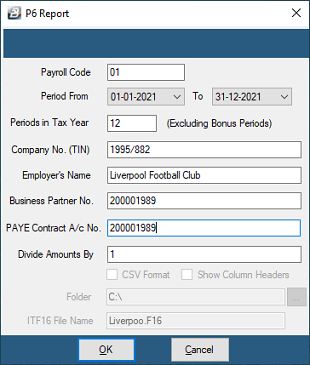
- Go to View → Tax → P6
- Fill in your organizational details
- Click OK
- Select the range of employees to include
- Preview or Print, as required
Print 3 copies: one for the company, one for the employee, and one for ZIMRA.
P6 Fields
Each transaction code is allocated a default P6 field matching the nature of the transaction it processes. Getting this right matters — it ensures reports and exports submitted to ZIMRA correctly categorize the data for audit purposes.
To view current P6 field allocations:
- Go to Setup → Tax → Existing
- Select the P6 Fields tab

Changing a P6 Field
View written instructions
Method 1:
- Go to Setup → Tax → P6 Fields tab
- Select the transaction code with the incorrect field
- Use the dropdown against P6 field to select the correct one
Method 2:
- Go to Edit → Transaction Codes
- Select the transaction code with the incorrect field
- Use the dropdown against P6 field to select the correct one

Clearing P6 Data
This feature has seen little use since FDS was introduced — P6 data takes up very little space, so there's little benefit to deleting it, and Belina generally recommends leaving it in place. In the past, there were situations requiring P6's to be regenerated before printing; this isn't necessary today.
To clear P6 history:
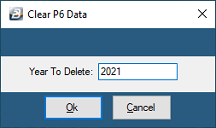
- Go to Data → Clear P6 Data
- Enter the P6 year to clear
- Click OK
- Click Yes past the warning message to confirm deletion
Was this page helpful?