Tax Credits
Tax credits are available to elderly, blind, or disabled taxpayers, and for approved medical expenses incurred. Credits reduce the calculated Tax Payable directly — after taxable income has already been run through the tax bands.
The credits available (effective 1 January 2023) are:
| Credit | Amount |
|---|---|
| Blind | $900 per annum ($75/month) |
| Disabled | $900 per annum ($75/month) |
| Elderly | $900 per annum ($75/month) |
| Medical expenses | 50% of the expense incurred |
Notes:
- An employee can receive either the Blind or Disabled credit, not both
- The Elderly credit is apportioned in the year of commencement (i.e. the year the employee turns 55)
- The Medical Expenses credit covers invalid appliances, consultation fees, drugs, and medicines
- Non-residents can claim for medical aid contributions but not other medical expenses
- Different amounts apply for ZiG payrolls — contact Belina support for the current figures
Blind, Disabled, and Elderly Credits
Blind:
Available to employees who have obtained a tax directive from ZIMRA. The credit amount is set in the annual budget. Any unused portion may be transferred to a spouse.
Disabled:
Available to employees who have obtained a tax directive from ZIMRA. Where the disability isn't visible, a medical certificate should be obtained and taken to ZIMRA for processing. This credit does not apply to non-residents or to blind taxpayers.
Elderly:
Employees who turn 55 before the start of the tax year receive the full credit; those turning 55 during the year have it pro-rated. Take care entering dates of birth — proof (National ID or birth certificate) should be kept on file.
Setting Up Blind, Disabled, and Elderly Credit Amounts
These amounts update automatically with a software update after each year's budget announcement, but can also be set manually:
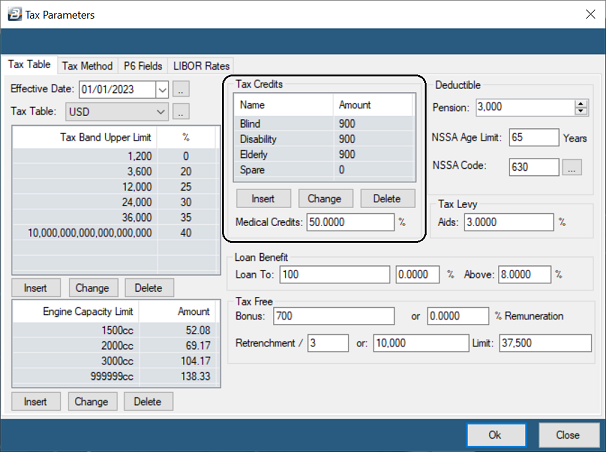
- Go to Setup → Tax → Existing
- Under the Tax Table tab, go to Tax Credits
- Highlight Blind → Change → enter the current credit amount
- Highlight Disabled → Change → enter the current credit amount
- Highlight Elderly → Change → enter the current credit amount, and set the Age Lower Limit (55 years, as of the 2023 tax year)
Employee Setup
For credits to come through for an eligible employee:
- Go to Edit → Employee Master
- Select the employee
- Confirm the Date of Birth is correctly set — this drives the Elderly credit automatically
To add a Blind or Disability credit:
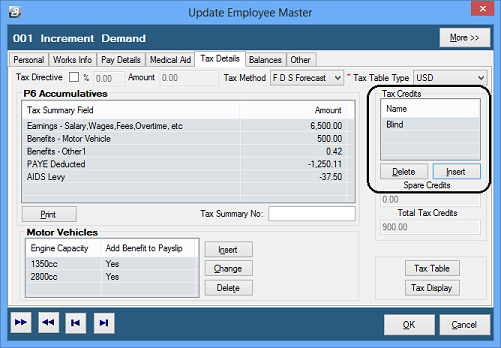
- Go to the Tax Details tab
- Click Insert in the Tax Credits section
- Select Blind and/or Disability
Processing
Elderly, Blind, and Disabled credits come through automatically once set up — there's no period-by-period processing required. Check the Tax Display to confirm a credit is being applied correctly.
Medical Credits
An employee is entitled to a 50% credit on the value of medical expenses and/or medical aid contributions paid — including for immediate family (spouse and minor children). Enter the full expense amount when processing; Belina calculates the 50% credit automatically.
Vouchers: medical expenses must be supported by valid invoices/receipts from registered clinics, hospitals, or pharmacies (for prescription drugs). Keep the voucher on file for ZIMRA audit. Medical expense credits on invalid appliances, consultation fees, drugs, and medicines are not available to non-residents — though medical aid contributions are. The credit applies to the taxpayer, spouse, and minor children, but not other dependents.
Setting Up the Medical Credit Percentage
- Go to Setup → Tax → Existing
- Under the Tax Table tab, enter
50%against Medical Credits
Setting Up the Medical Expense Transaction Code
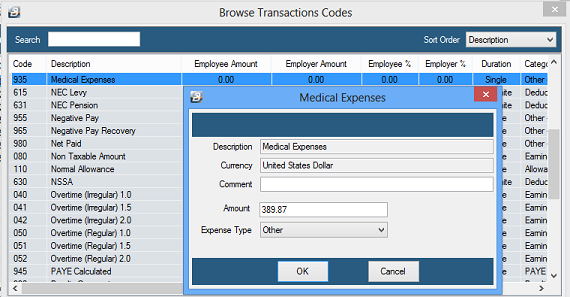
Check whether a Medical Expense transaction code already exists (typically Code 935). If not:
- Go to Edit → Transaction Codes
- Click Insert
- Select Other - Medical Expenses
- Enter/change the default details
- Click OK
Processing Medical Expenses
- Go to Process → Payslip Input
- Select the employee
- Click Insert
- Browse for the Medical Expenses transaction code (e.g. Code 935)
- Enter a comment if appropriate
- Enter the amount — the whole expense amount, not the 50% credit
- Select the Expense Type from the dropdown
- Click OK
The credit offsets immediately, spread over the tax year: Tax Payable in the current period is reduced, and any balance carries forward to subsequent periods until fully utilized. Check the Tax Display to confirm the credit is being applied correctly.
Unapplied Medical Tax Credits
When medical aid or medical expense credits exceed the PAYE calculated for a period, the excess carries forward to the next month. After rolling into a new month, Belina displays a reminder every time the payroll is opened if there are employees with unapplied medical tax credits.
To apply the carried-forward credits:
- When the reminder appears, click OK to view the list of affected employees
- Tag the employees to process, or click Tag All
- Click Apply Credit to allocate the carried-forward amounts
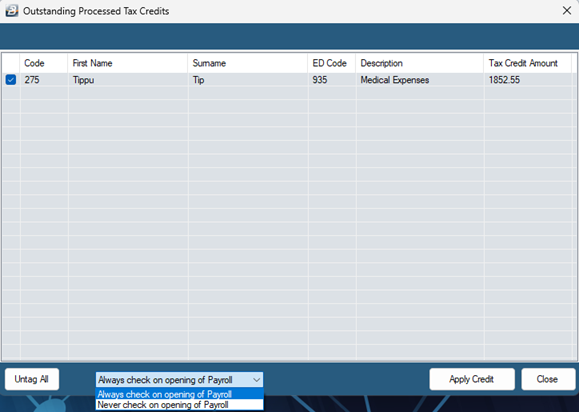
To disable the reminder: select Never check on opening of Payroll from the dropdown in the reminder window, then close it.
To access the check manually (if the reminder is disabled, or you skipped it): Data → Support Menu → Processed Tax Credits Check.
Was this page helpful?