Consolidation
The Consolidation feature combines data from separate payrolls into a single set of reports — giving a picture of the entire organization rather than just one payroll or group of employees. This is particularly useful for reporting to ZIMRA, NSSA, pension funds, medical aid schemes, NECs, Standards Development Levy, ZIMDEF, and other third parties who need organization-wide figures.
Employees on monthly and weekly payrolls can be consolidated together, because the system consolidates using Accounting Periods rather than Pay Periods.
Step 1 — Preparation
Before payrolls can be consolidated, the following need to be aligned across every payroll involved:
Employee Codes
Every employee must have a unique Employee Code across the whole organization — no duplicates between payrolls. Where two payrolls could otherwise clash (e.g. wages staff and contract staff both starting numbering at 001), assign each payroll a distinct prefix, e.g. W for wages and C for contract, giving W001 and C001.
To set a prefix for new employees:
- Go to Setup → Global Defaults
- Select the Employee Master tab
- Tick Special Employee Code Prefix
- Use a letter prefix rather than a Department, Cost Centre, Paypoint, or initials
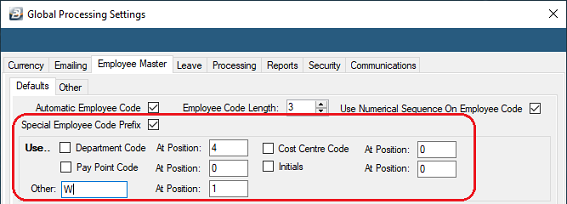
For existing payrolls: employee numbers will need to change to introduce a prefix. Belina can supply a script to automate adding a prefix to every existing Employee Code.
Transaction Codes
Each Transaction Code number and its Transaction Category must be the same across every payroll being consolidated. The Description doesn't need to match exactly.
Departments
Department Codes must be identical for the same department across every payroll — this way, a Department report run from the consolidation includes every relevant employee from each underlying payroll.
Cost Centres
Cost Centre Codes must be identical for the same cost centre across every payroll, for the same reason as Departments.
Paypoints
Paypoint Codes must be identical for the same paypoint across every payroll, for the same reason as Departments and Cost Centres.
Periods
Ideally, all payrolls being consolidated should be in the same Payroll and Accounting Period. Where a weekly payroll is involved, consolidate in the last week of the month/accounting period, so a full month's data is captured for that period.
Step 2 — Select Payrolls
Once the payrolls are prepared:
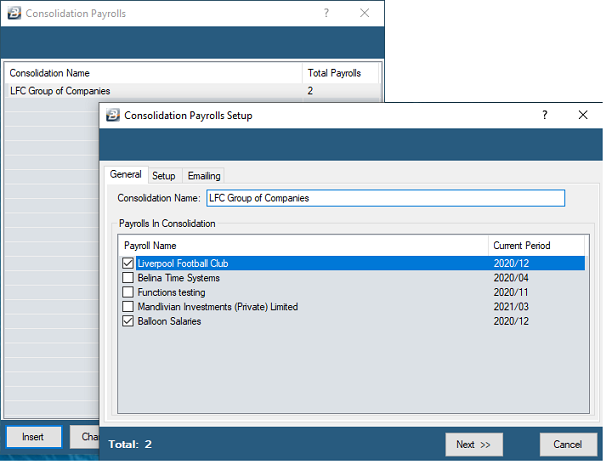
- Go to File → Consolidation
- Click Insert to add a Consolidation Payroll
- Enter a Consolidation Name
- Tick the checkbox for each payroll to include in this consolidation
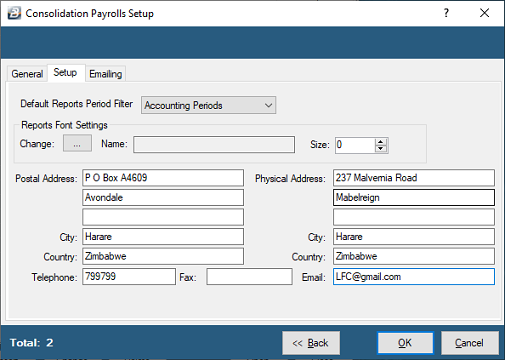
- Click Next to move to the Setup tab
- Under Default Reports Period Filter, select Accounting Periods if the payrolls being consolidated have a different number of pay periods (e.g. a weekly and a monthly payroll)
- Click OK to save
Step 3 — Build and View Reports
- Go to File → Consolidation
- Select the Consolidation Payroll
- Click Open
- Select the period(s) to consolidate
- Click OK — a "Building Consolidation Records" screen shows the build progress
If any duplicate Employee Codes are found, they're highlighted during the build. Go to each payroll flagged and resolve the conflict before the build can complete successfully.
- Once the build completes, the Consolidation payroll opens, ready to view or print reports
- Select the report to run
The set of reports available from a Consolidation payroll (shown in a distinct font) differs from those available in the underlying individual payrolls — see Report Index for the general reference of reports available across the system.
Was this page helpful?