Accounting Package Export Reference
Field-by-field settings for each accounting package supported by Utilities → Exports → Journal. See Journal & Accounting Exports Overview for the general process and prerequisites (General Ledger code setup).
AccPac
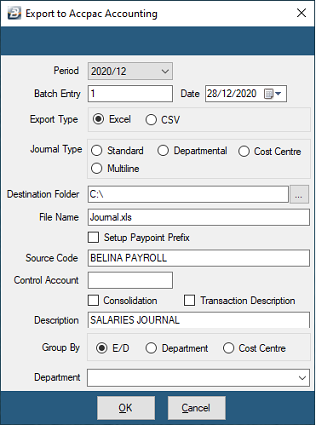
| Field | Description |
|---|---|
| Period | The payroll period being exported |
| Batch Entry | The batch number used to import into AccPac |
| Date | Date to include in the journal export |
| Export Type | Excel or CSV format |
| Journal Type | Standard, Departmental, Cost Centre, or Multiline |
| Destination Folder | Folder for the export file |
| File Name | Defaults to Journal.xls |
| Source Code | Transaction date applied within AccPac |
| Control Account | Accounting code for the Control Account |
| Consolidation | Combine same-account transaction lines into one |
| Transaction Description | Whether to include a description on each imported line |
| Description | The description text to include |
| Group By | E/D Code, Department, or Cost Centre |
| Department | Grouping by department |
Apogee
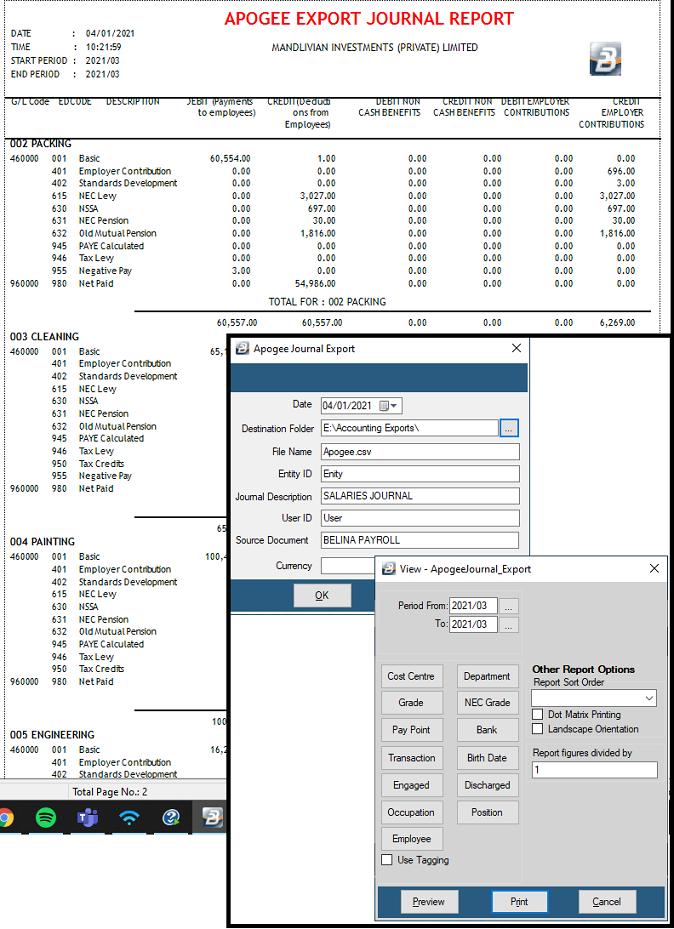
| Field | Description |
|---|---|
| Date | Date to include in the journal export |
| Destination Folder | Folder for the export file |
| File Name | Defaults to Journal.xls |
| Entity ID | Identifier for the export, defaults to PST5 |
| Currency | Currency type for the journal export |
Baan
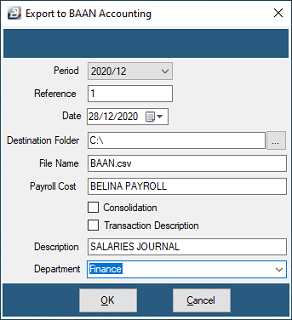
| Field | Description |
|---|---|
| Period | The payroll period being exported |
| Reference | The reference number used for the import into Baan |
| Date | Date to include in the journal export |
| Destination Folder | Folder for the export file |
| File Name | Defaults to Journal.xls |
| Consolidation | Combine same-account transaction lines into one |
| Transaction Description | Whether to include a description on each imported line |
| Description | The description text to include |
| Department | Grouping by department |
BIQ
| Field | Description |
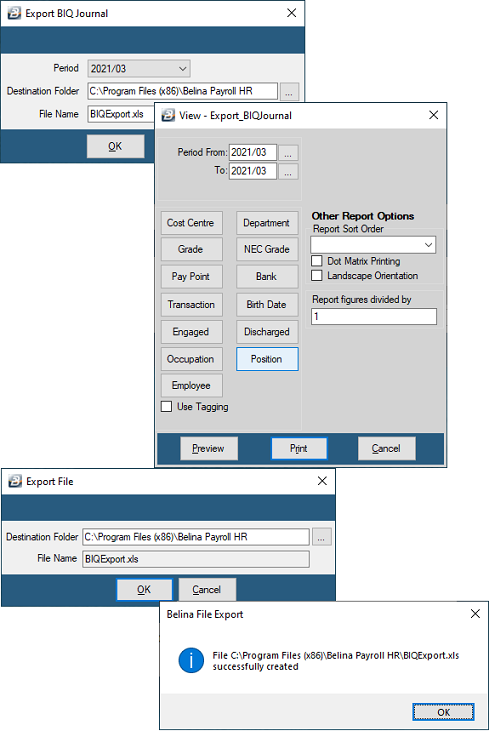
|---|---|
| Period | The payroll period being exported |
| Destination Folder | Folder for the export file |
| File Name | Defaults to Journal.xls |
Bankers Realm
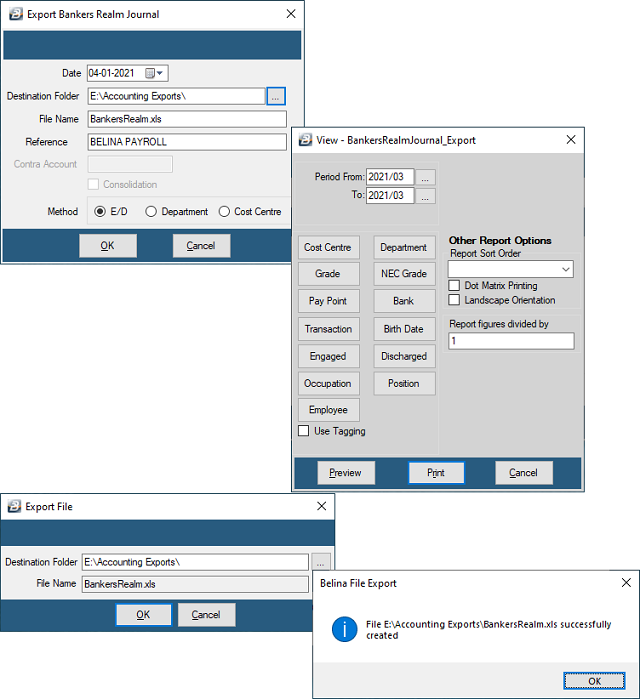
| Field | Description |
|---|---|
| Date | Date to include in the journal export |
| Destination Folder | Folder for the export file |
| File Name | Defaults to Journal.xls |
| Reference | A reference to include in the journal export |
| Method | E/D, Department, or Cost Centre |
Evolve
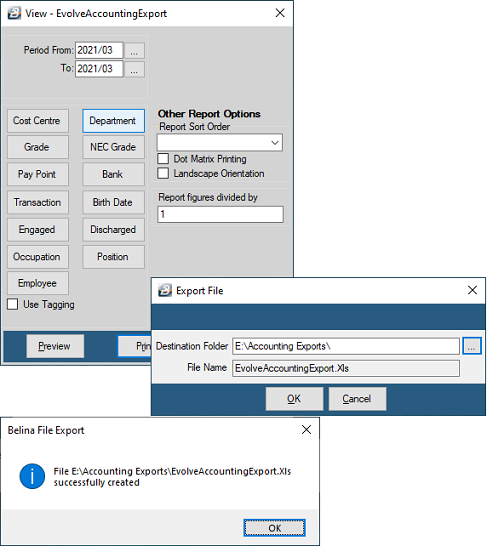
No configurable export fields — the export runs directly with default settings.
NaVision
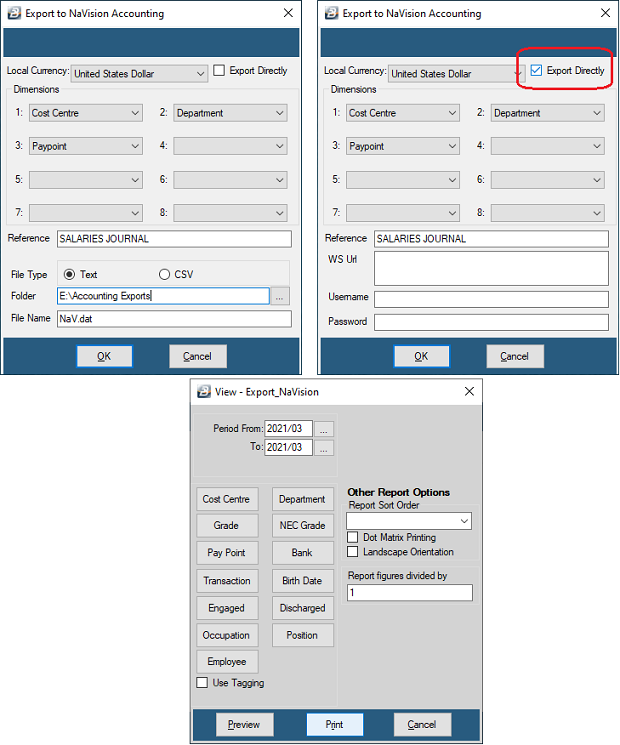
| Field | Description |
|---|---|
| Local Currency | Currency type for the journal export |
| Export Directly | Enables seamless integration with NaVision |
| Dimensions | How the journal is split — e.g. by Cost Centre, Department, Pay Point, or Country |
| Reference | Description of the journal batch |
| File Type | Fixed-length text file or CSV |
| Folder | Folder for the export file |
| File Name | Defaults to Journal.xls |
| WS Url | URL for connecting to the NaVision instance, when exporting directly |
| Username | Username to connect to NaVision |
| Password | Password to connect to NaVision |
Omni Accounts
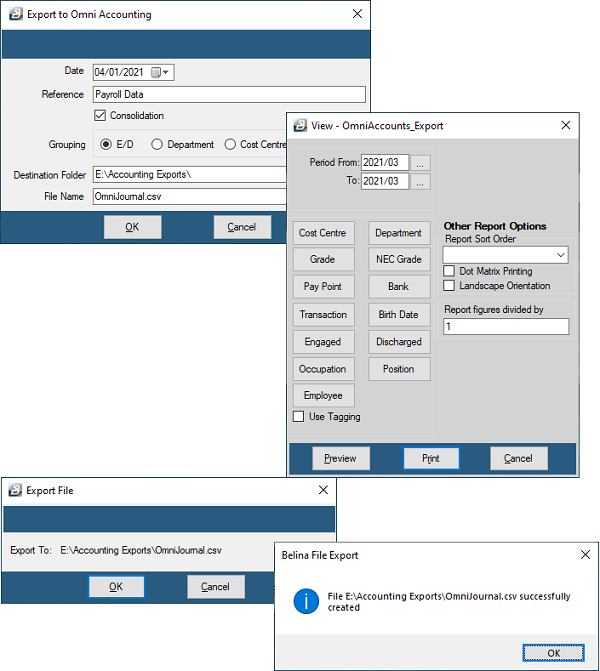
| Field | Description |
|---|---|
| Date | Date to include in the journal export |
| Reference | The journal batch description |
| Consolidation | Combine same-account transaction lines into one |
| Group By | E/D, Department, or Cost Centre |
| Destination Folder | Folder for the export file |
| File Name | Defaults to Journal.xls |
Oracle
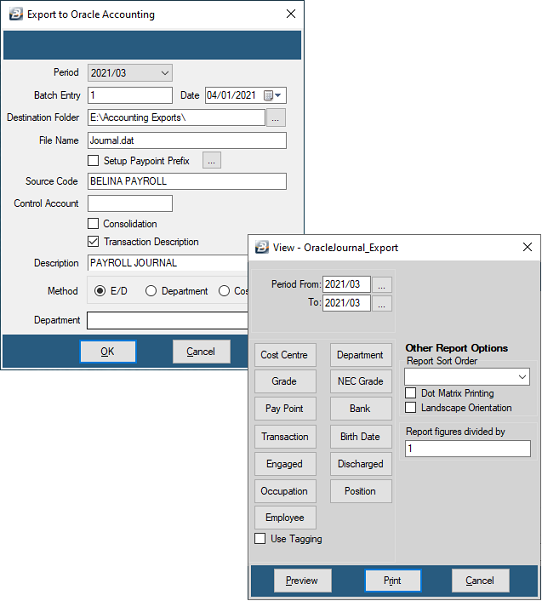
| Field | Description |
|---|---|
| Period | The payroll period being exported |
| Batch Entry | The batch number used to import into Oracle |
| Date | Date to include in the journal export |
| Destination Folder | Folder for the export file |
| File Name | Defaults to Journal.xls |
| Source Code | Transaction date applied within Oracle |
| Control Account | Accounting code for the Control Account |
| Consolidation | Combine same-account transaction lines into one |
| Transaction Description | Whether to include a description on each imported line |
| Description | The description text to include |
| Method | E/D, Department, or Cost Centre |
| Department | Grouping by department |
Pastel (Partner / Evolution)
In order to export journals from Belina Payroll HR, first set up a General Ledger code for each transaction code — this only needs doing once. Every period after that, generating the export file is straightforward.
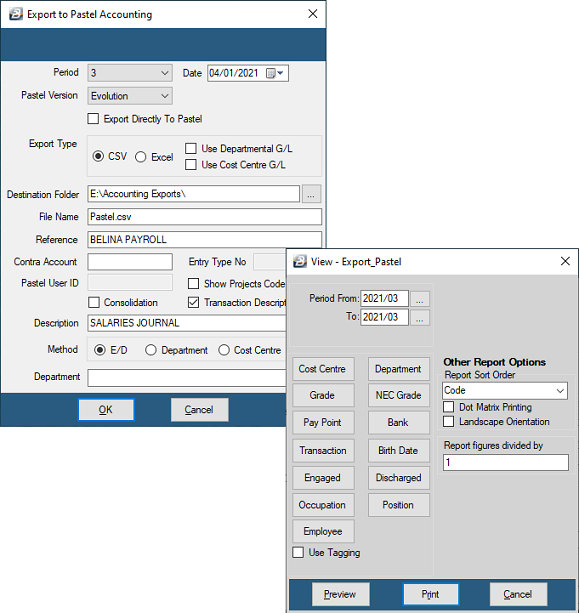
| Field | Description |
|---|---|
| Period | The payroll period being exported |
| Date | Date to include in the journal export |
| Pastel Version | The target Pastel Accounting version |
| Export Directly to Pastel | Posts the journal directly into Pastel for a seamless export. If unticked, the journal is exported as a file for manual import |
| Destination Folder | Folder for the export file — or the Pastel folder, if exporting directly |
| Export Type | CSV or Excel |
| Departmental or Cost Centre | Whether Departmental and/or Cost Centre journals are being exported |
| File Name | Defaults to Journal.xls |
| Reference | Journal batch description |
| Contra Account | Contra account, in the same format as your Pastel Accounting software |
| Entry Type No. | Batch number, when exporting directly to Pastel |
| Consolidation | Combine same-account transaction lines into one |
| Transaction Description | Whether to include a description on each imported line |
| Description | Pastel Evolution batch description, when exporting directly |
| Method | E/D, Department, or Cost Centre |
To export the file:
- Go to Utilities → Exports → Journal → Pastel
- Complete the fields above, click OK
- On the Range Selection screen, make your selections
- Click Preview to view the Pastel Export Journal, or Close
- Note the file destination shown — needed when importing into Pastel
To import into Pastel:
- Open Pastel and the general ledger the payroll batch will import into
- Go to Process → Journals
- Select Payroll Journal, or the journal used to post payroll transactions
- Click Batch → Import
- Use the Lookup feature to find and select the Belina export file
- Click Process to import the batch
- Check the import — confirm details are correct and the batch is in balance
- Post the journal using Update, and confirm with Update this Journal Batch
Export Directly to Pastel Partner: to have a seamless integration, purchase the SDK kit from Pastel — this allows the two programs to communicate directly. Obtain the following from your system administrator and from Pastel: Pastel Server, Pastel Database, Common Database, User Name, Password, Serial Number, and Authorization Key.
Sage
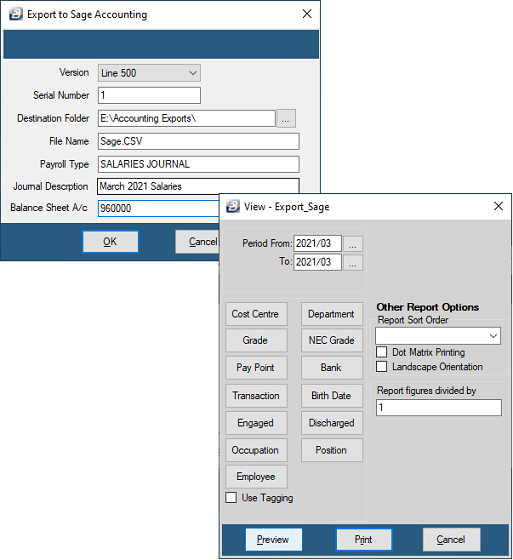
| Field | Description |
|---|---|
| Version | The Sage software version to export to |
| Serial Number | An auto-incrementing number tracking exports done so far |
| Date | Date to include in the journal export |
| Destination Folder | Folder for the export file |
| File Name | Defaults to Journal.xls |
| Payroll Type | Journal reference |
| Journal Description | Journal description |
| Balance Sheet A/c | Journal control account |
SAP
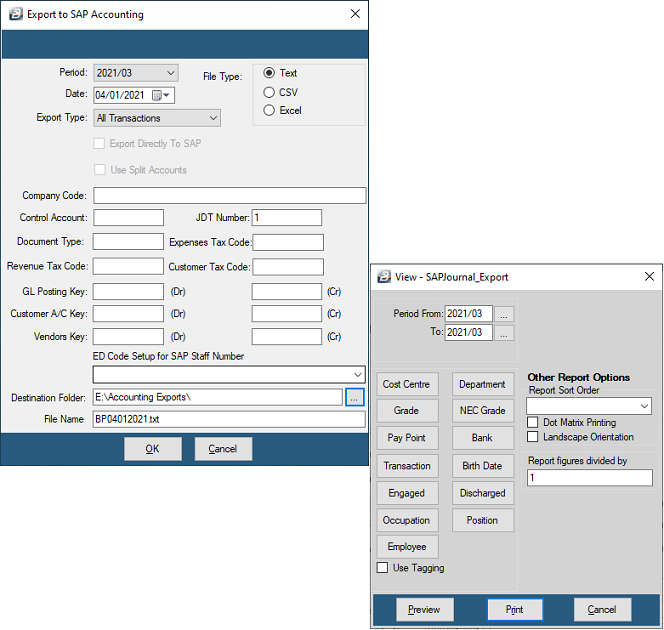
| Field | Description |
|---|---|
| Period | The payroll period being exported |
| Date | Date to include in the journal export |
| Export Type | Excel or CSV |
| File Type | Destination file type |
| Company Code | The processing company whose books the account posts to |
| Control Account | The journal summary account |
| JDT Number | The journal transaction number in the system |
| Document Type | Distinguishes between business transactions, classifies accounting documents, and determines the number range for documents and account types (asset, material, vendor, etc.) |
| Expenses Tax Code | Two-digit code representing the expense |
| Revenue Tax Code | Two-digit code representing the revenue |
| Customer Tax Code | The customer tax code assigned in the customer master |
| GL Posting Key | Two-digit numerical key determining the type of transaction entered in a line item |
| Customer A/C Key | Enables posting amounts to certain revenue account types |
| Vendors Key | A keyword provided by SAP or the relevant add-on vendor |
| ED Code Setup for SAP Staff Number | A transaction code set up for employee number, used to identify the employee uniquely in SAP |
| Destination Folder | Folder for the export file |
| File Name | Destination file name |
Smart Stream
In order to export journals, first set up a General Ledger code for each transaction code — this only needs doing once.
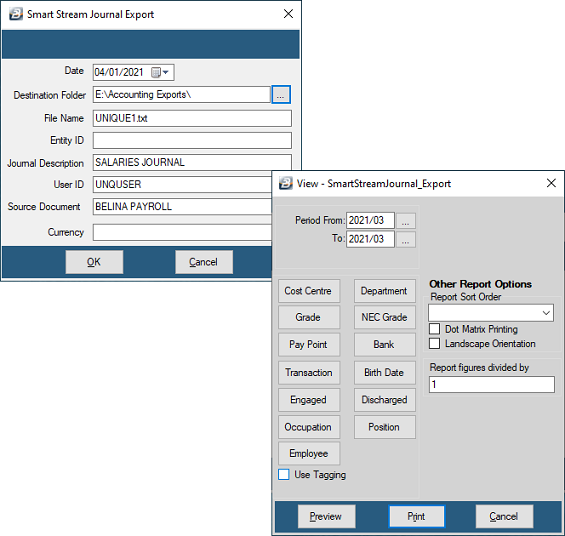
| Field | Description |
|---|---|
| Date | Date to include in the journal export |
| Destination Folder | Folder for the export file |
| File Name | Defaults to Journal.xls |
| Entity ID | Company identifier |
| Journal Description | Journal description |
| User ID | The Smart Stream user generating the export |
| Source Document | Journal source |
Sun Accounting
In order to export journals, first set up a General Ledger code for each transaction code — this only needs doing once.
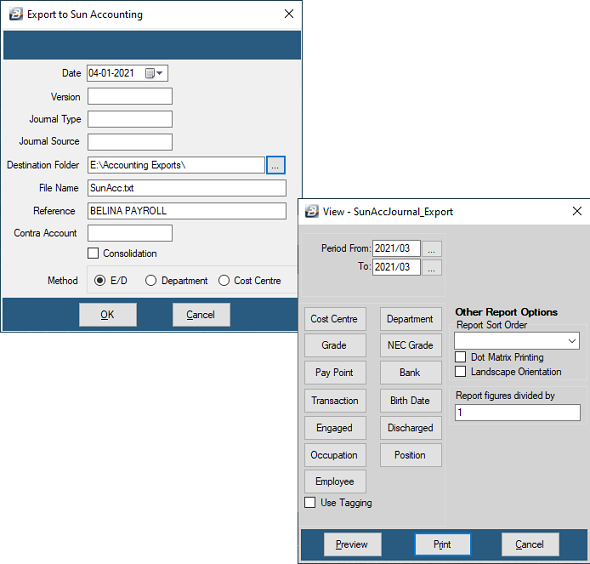
| Field | Description |
|---|---|
| Date | Date to include in the journal export |
| Version | Excel or CSV |
| Journal Type | The type of journal being exported |
| Journal Source | Defaults to BELINA PAYROLL |
| Destination Folder | Folder for the export file |
| File Name | Defaults to journal.xls |
| Consolidation | Combine same-account transaction lines into one |
| Method | E/D, Department, or Cost Centre |
Syspro
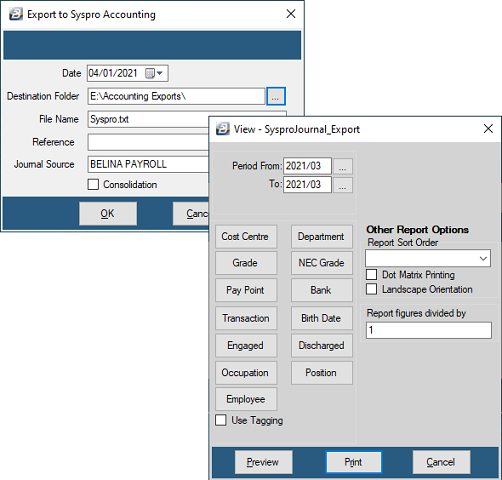
| Field | Description |
|---|---|
| Date | Date to include in the journal export |
| Version | The Syspro version to export to |
| Destination Folder | Folder for the export file |
| File Name | Defaults to Journal.xls |
| Reference | Journal description |
| Consolidation | Combine same-account transaction lines into one |
T24
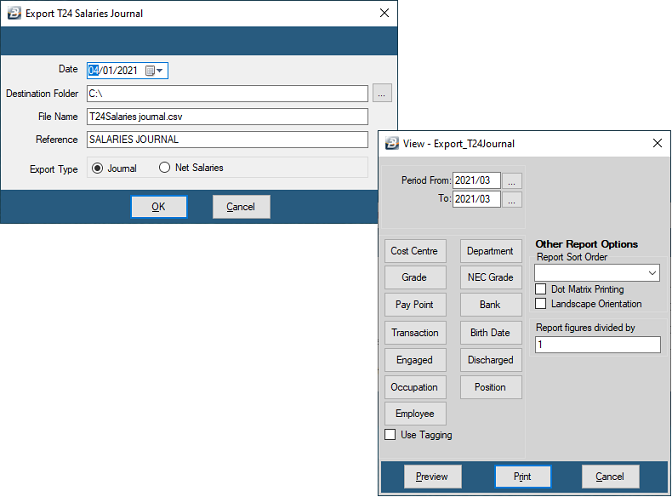
| Field | Description |
|---|---|
| Date | Date to include in the journal export |
| Destination Folder | Folder for the export file |
| File Name | Defaults to Journal.xls |
| Reference | Journal description |
| Export Type | Whether the export includes full journal entries, or only net pay transactions |
Was this page helpful?