NSSA Report Setup
The NSSA report displays NSSA and APWCS contributions, along with the total insurable earnings (currently basic pay only). It must be set up before it can be previewed or printed.
Step 1: Open the NSSA Report Menu
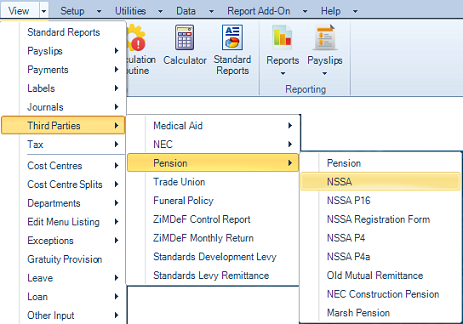
View → Third Parties → Pension → NSSA
Step 2: Enter the Report Header Details
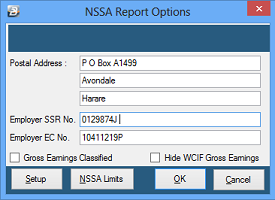
On the NSSA Report Options screen, enter your organization's header details.
- Gross Earnings Classified — tick this if you want the report to display only Basic Pay amounts up to the NSSA limit, rather than the actual Basic Pay amount where it exceeds the limit.
Step 3: Set Up the Report Body
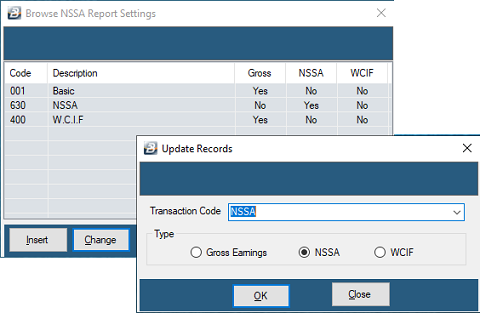
Click Setup to tell Belina Payroll which transaction codes represent Basic, NSSA, and APWCS. The NSSA Report Settings screen should contain only these three codes:
- Add the Basic Salary codeClick InsertSelect the Basic Salary transaction code from the drop-downSet the radio button to Gross EarningsClick OK.
- Add the NSSA codeClick InsertSelect the NSSA transaction codeSet the radio button to NSSAClick OK.
- Add the APWCS codeClick InsertSelect the APWCS transaction codeSet the radio button to APWCSClick OK.
Step 4: Specify the NSSA Period Limits
The NSSA limit is the maximum amount — based on the TCPL for an average household of five — on which the NSSA percentage is applied. This limit changes regularly, so always verify the current value before updating it.
To update the NSSA limits:
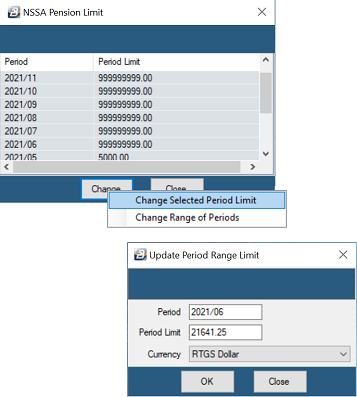
- Click the NSSA Limits button — the existing limits for the current tax year are displayed
- Click Change if a limit needs updating
- Select the period you want to change
- Select Change → Change Selected Period Limit
- Enter the Period Limit
- Click OK to save
Step 5: View the Report
From the NSSA Report Options screen, click OK. On the Report Options screen, make your selections, then click Preview or Print.
Group Reports
If several payrolls are consolidated into a group, the NSSA report can be printed from the consolidation payroll.
Was this page helpful?