Locking the Payroll
It is possible to lock the system after certain functions have been performed, including:
- Calculation Routine
- Bank Transfer, Cheque or Coinage Print
Care should be taken to ensure that all processing has been finalized. Locking the payroll will not allow further transactions to be processed in the period.
Locking the Payroll
Locking the Payroll Manually
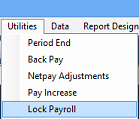
- Go to Utilities > Lock Payroll.
- A confirmation prompt will display. Select Yes to lock the system.
- A Locked Payroll status message and icon will now appear to indicate that the payroll is locked.
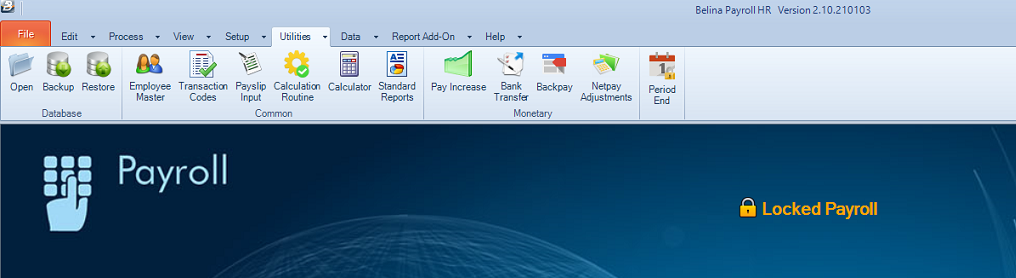
Automating Payroll Locking
-
Go to Setup > Global Defaults.
-
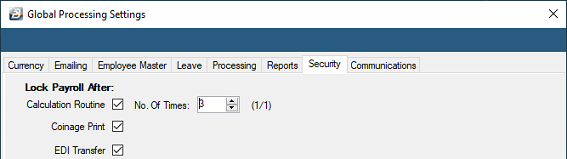
Select the Security tab.
-
Configure the criteria to automatically lock the system. Automatic locking can be triggered by:Running the Calculation Routine a specified number of timesPerforming a Coinage PrintProcessing an EDI Transfer
-
Once the selected trigger condition is met, the system will lock automatically.
Unlocking the System
If additional processing is required in the current period, an administrator must unlock the payroll:
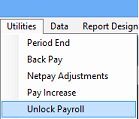
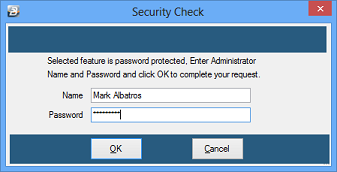
- Go to Utilities > Unlock Payroll.
- Enter an Administrator Username and Password.
- Click OK to unlock the system.
Was this page helpful?