Leave Setup (Global Defaults)
How leave behaves across the payroll is controlled centrally from Setup, then Global Defaults, under the Leave tab and its sub-tabs.
General Leave Settings
- Go to Setup, then Global Defaults
- Select the Leave tab
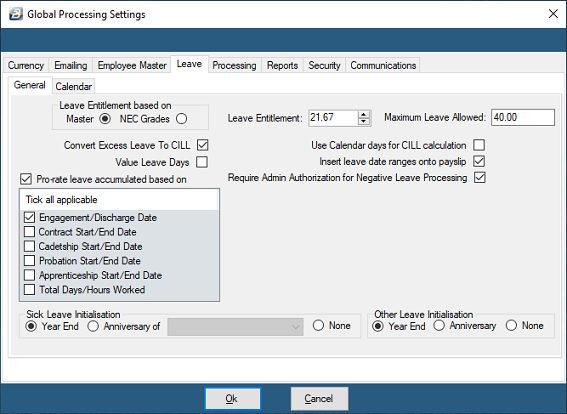
| Field | Description |
|---|---|
| Leave Entitlement - Master | The default leave entitlement for a new employee is taken from what has been entered in the Employee Master. |
| Leave Entitlement - NEC Grades | The default leave entitlement for a new employee is taken from the NEC Grade leave entitlement assigned to that employee. |
| Leave Entitlement | The default number of leave days that comes through for new employees in the Employee Master. |
| Maximum Leave Allowed | A limit that can be set on the accumulation of leave balance. |
| Convert Excess Leave to CILL | Any accumulation of leave that exceeds the 'Maximum Leave Allowed' can be paid out as CILL (Cash in Lieu of Leave). If this is not enabled, excess days are simply lost. |
| Sick Leave Initialisation | The Sick Leave day counter can be set to initialise on the employee's anniversary of employment, or as part of the Year End Procedure. |
| Other Leave Initialisation | The counters for Other Leave types can be set to initialise on the employee's anniversary of employment, or as part of the Year End Procedure. |
Valuing Leave Days
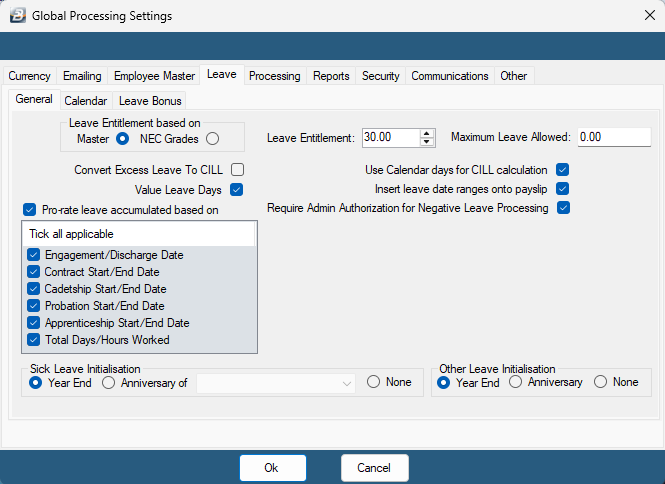
When enabled, the total Basic Pay is split between pay for days worked and the value of leave for the days of absence.
To enable:
- Go to Setup, then Global Defaults
- Select the Leave tab
- Tick Value Leave Days
Worked example:
An employee has a Basic monthly salary of $840 and takes 5 days sick leave. With 'Value Leave Days' ticked, the total paid remains $840, but is broken down as:
- Basic: $680
- Sick Leave (5 days): $160
The leave valuation is calculated by taking the period rate of pay (the Basic Salary) and dividing it by the number of working days in that period.
Manual check: Go to Edit, then Employee Master, select the employee, click the Pay Details tab, note the Daily Rate, and multiply it by the number of leave days to get the total value.
Calendar Days vs Working Days
Leave can be processed using either Working Days or Calendar Days.
- Working Days — weekends are treated as off days and are not included in the leave calculation.
- Calendar Days — every day of the week during the leave period is counted, including weekends.
To set up:
- Go to Setup, then Global Defaults
- Click the Leave tab
- Click the Calendar sub-tab
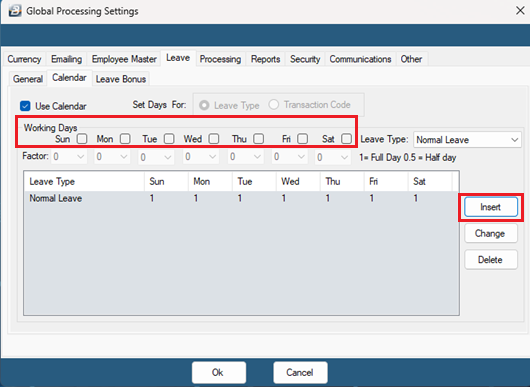
- Tick Use Calendar
- Use the 'Leave Type' dropdown to select the leave type this applies to
- Select the Working Days that apply (for Calendar Days, select all 7 days)
- Use the 'Factor' dropdown to set the weighting for each day (1 = full working day, 0.5 = half day, 0 = not a working day)
- Click Insert to add the entry, then OK to save
Tertiary Institution Leave Bank Setup
Tertiary institutions can bank unused leave days at year end. The rules specify the maximum number of unused days that can be banked each year (excess is forfeited or paid as CILL) and the maximum days that can accumulate in the leave bank.
- Go to Setup, then Global Defaults
- Select the Processing tab
- Tick Tertiary Institution Processing.
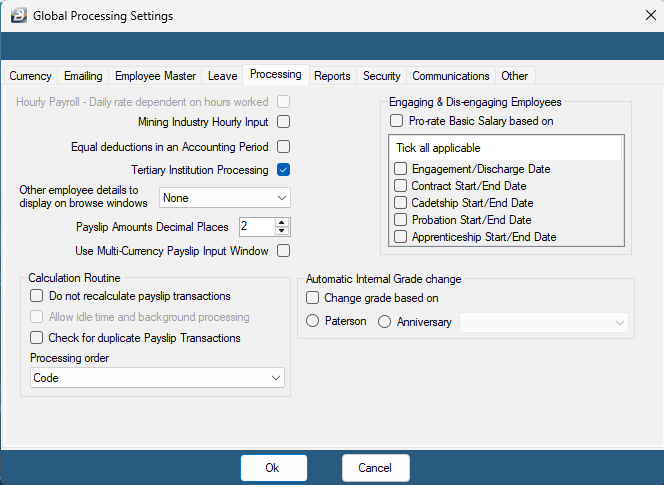
- Select the Leave tab under Global Defaults — a Tertiary Institution Setup sub-tab now appears
- Press Insert to add a rule
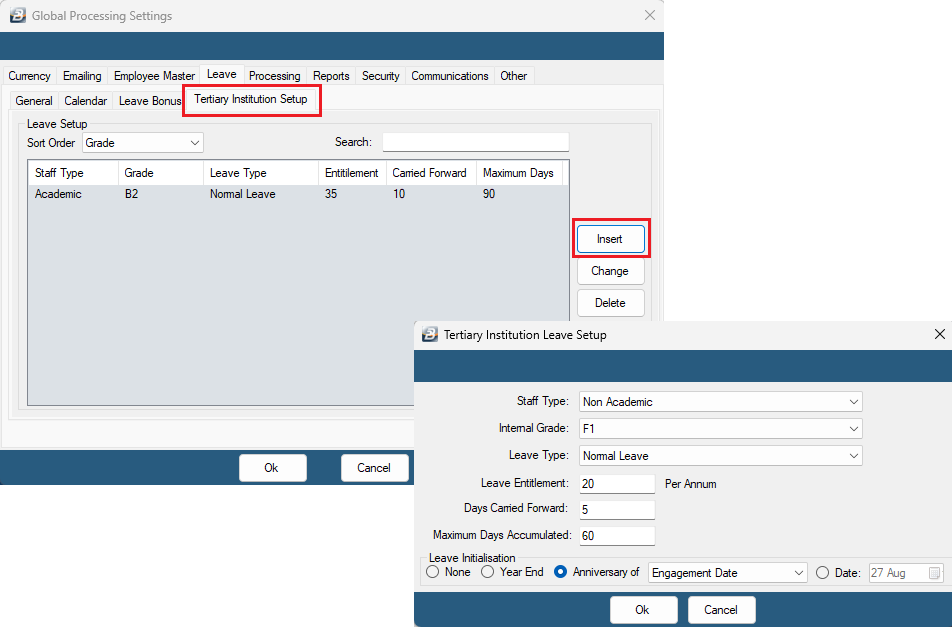
| Field | Description |
|---|---|
| Staff Type | Select either 'Academic' or 'Non Academic'. |
| Internal Grade | The internal grade the rule applies to. |
| Leave Type | The leave type the rule applies to. |
| Leave Entitlement | The number of leave days that accumulate per annum. |
| Days Carried Forward | The maximum number of leave days that can move to the leave bank at year end. The balance is either forfeited or paid as CILL, per the General tab setup. |
| Maximum Days Accumulated | The maximum number of days that can be accumulated in the leave bank. |
| Leave Initialization | When a new year commences for leave purposes — None (no banking; 'Maximum Days Accumulated' applies to the leave balance instead), Year End (initialisation/banking happens at Year End Procedure), Anniversary of (happens on the anniversary selected from the dropdown), or Date (happens on a specific date entered). |
Excess leave can also be configured to convert to CILL under the same setup.
For viewing leave bank balances and reports once this is set up, see Leave Bank.
Was this page helpful?