Importing Leave from Time Control
Leave records can be imported into Payroll from the Time Control Module, or from a spreadsheet.
Take a backup before doing any of the following. This allows the system to be restored to its prior state if needed, by restoring the backup.
Step 1: Export Leave Records from Time Control
- Open the Time Control Module
- Select Utilities, Export Data, then Leave Records
- Select the date range to include, and any other filters required
- Review the selected records displayed; if satisfied, press Export
- The saved file is named BelinaLeaveRecordsImport
- Use this file for the import into the Payroll Module

Step 2: Prepare the Import File
If building or checking the file manually (e.g. an ad-hoc spreadsheet rather than a Time Control export):
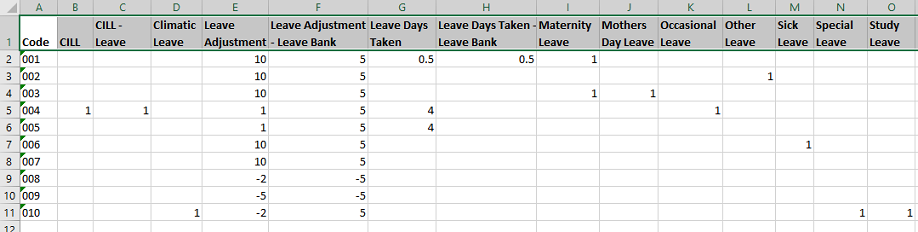
- The first column must contain the employee codes
- Subsequent columns can be in any order — they are assigned during the import
- A header row with column names is useful but not essential
Step 3: Import Leave Records into Payroll
- Select Utilities, Imports, then Leave Records
- A backup warning is displayed — press Yes to continue if a backup has already been done or isn't required; otherwise stop, take a backup, and return once done
- Select the file type being imported (e.g. Excel File).
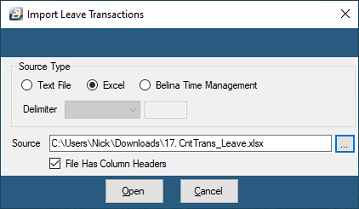
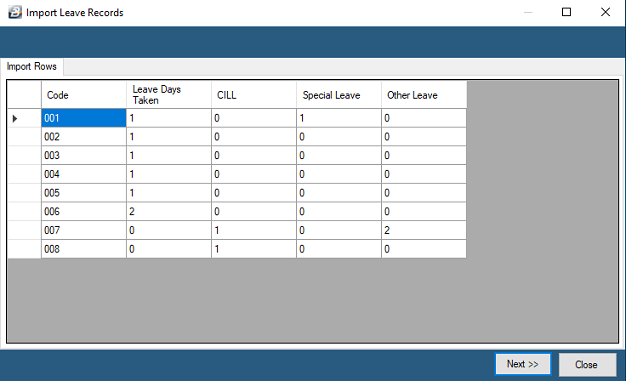
- Press Open — the file opens and data is shown in spreadsheet format for checking
- Press Next >>
- For each import field on the left, assign it to the corresponding Payroll Transaction Code on the right, either by double-clicking the Transaction Description or by ticking the checkbox and pressing Assign. Assigning the employee code is essential, since it's the primary key.
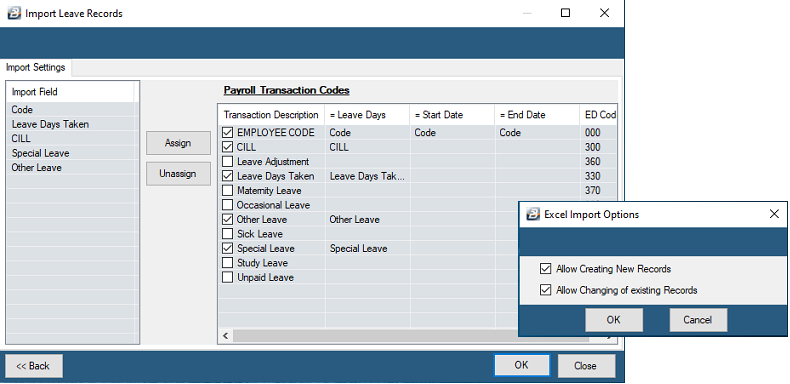
- Press OK once all fields are assigned
- On the 'Excel Import Options' screen, choose whether to Create New Records and/or Allow Changing of Existing Records
- Press OK to import the spreadsheet transactions
Step 4: Check the Import
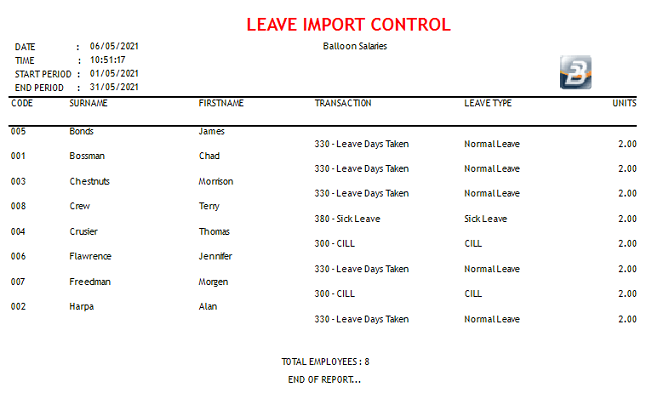
A control report — the Leave Import Report — is automatically generated after the import completes. It shows the leave records imported for each employee, including the leave type and number of days, so the import can be checked against expectations.
Was this page helpful?