Converting Payroll from USD to Multicurrency
This guide will assist in converting an existing payroll from United States Dollar to Multicurrency.
Step 1: Adding Zimbabwe Gold to the system
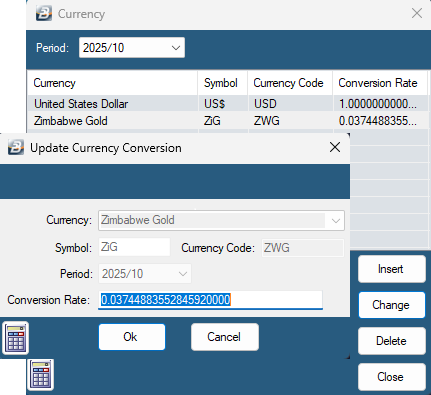
1.Go to Setup > Currency
1.Click 'Insert' and choose Zimbabwe Gold as the currency
2.Enter the conversion rate as the figure that you get when you divide 1 by the interbank mid rate on the RBZ website (For example, 1 ÷ 26.7031 = 0.0374488355284592).
3.Click ‘OK’ then ‘Close’
Step 2: Updating Global Currency Settings
-
Go to Setup > Global Defaults > Currency
-
Tick 'Use Multiple Currency Rate of Pay', 'Split PAYE and Net Pay by currency proportion', 'Display Exchange Variance on reports' and 'Reports in Foreign Currency'
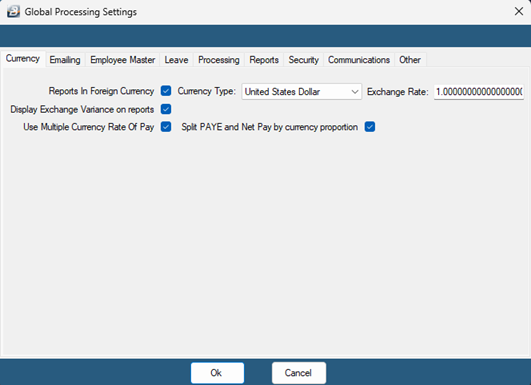
- Click OK to save changes
Step 5: Updating Decimal Places
-
Go to Setup > Global Defaults
-
Click the 'Processing' tab
-
Set 'Payslip Amounts Decimal Places' to 5
-
Tick 'Use Multi-currency Payslip input Window'.
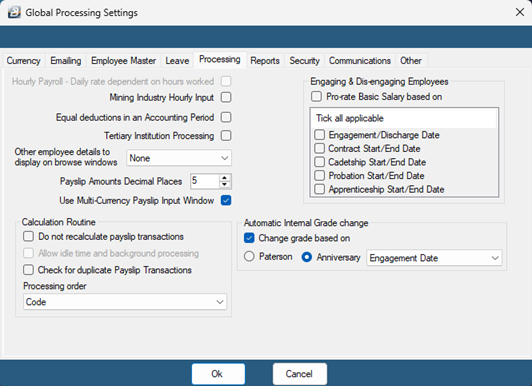
- Click on OK to save changes
Step 6: Setting up ZWG/Multicurrency transactions
NSSA will be setup in line with new regulations effective 1 April 2022. Instructions for the current NSSA setup are located under the topic NSSA.
For any transaction codes that are dependent on the Basic salary that need to calculate for both USD and ZiG, you must enable the multicurrency split: Go to Edit > Transaction Codes > double click the transaction code and tick 'Multicurrency Split'.
If you have any other transaction codes in ZWG for Earnings, Deductions/ Deductibles, Allowances, Benefits and Loans, you may proceed to create them.
Step 7: Viewing Reports
To view Multicurrency reports that show the split in currencies, go to ‘View’ > ‘Multicurrency’.
To view payslips, go to:
- View > Payslips > Payslip Print
- Select 'BelinaConfidentialForexSplit' as the payslip format This format is required to show the multi-currency breakdown.
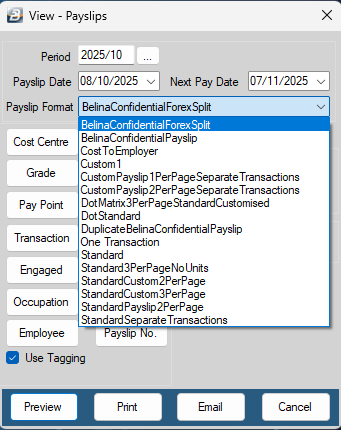
- Change any parameters as necessary
- Click preview
Was this page helpful?